
Suppliers and deliveries
Keep a list of your suppliers, send them purchase orders, and record each delivery so the stock and the cost of every product are right.
How buying works
Who: Owner, Manager or Inventory. Cashiers do not see Buying.
Everything in this chapter starts from Buying in the menu on the left. It opens the Purchase orders list. From there you reach Suppliers, New order and Receive without an order.
Two things to remember:
- An order moves no stock. Raising or sending a purchase order does not change what is on the shelf. Only a delivery that you post adds stock.
- A posted delivery cannot be changed. Check the quantities and costs before you press Post delivery.
Quantities on orders and deliveries are in the product's base unit, the smallest unit you count it in (for example tablets, capsules or bottles). The unit is shown beside the quantity box. The unit cost is the cost of one base unit.
Tip: If the supplier's invoice says ₱150.00 for a box of 100 tablets and you bought 5 boxes, enter 500 as the quantity and 1.50 as the unit cost.
Add or edit a supplier
Who: Owner, Manager or Inventory
Every order and every delivery belongs to a supplier, so add your suppliers first.
- Click Buying, then Suppliers.
- Click New supplier.
- Type the Name as it appears on their invoice. It is required and two suppliers cannot have the same name.
- Optionally type a short Code (it must be unique too).
- In Terms (days), type how many days they give you to pay. 0 means cash on delivery. The most is 365.
- Fill in Contact person, Contact number, Address and Notes if you want.
- Click Save. You see Supplier saved.
To change a supplier, find it in the list (the search box finds a name, code or contact), click Edit, change the details and click Save.
Stop using a supplier
Suppliers are never deleted. Click Deactivate on the row. A deactivated supplier no longer appears when you choose a supplier for an order or a delivery. To see it again, tick Include deactivated and click Reactivate.
If the supplier still has orders you are waiting for, deactivating is refused with a message such as … has 2 orders still outstanding. Receive or cancel them before deactivating the supplier.
Create a purchase order
Who: Owner, Manager or Inventory
- Click Buying, then New order.
- In Supplier, choose the supplier. You cannot change the supplier after the order is saved.
- Optionally set the Expected delivery date and type the Supplier's reference (their own order number).
- On the first line, start typing the product name, generic name, SKU or barcode in the Product box, then choose the product from the list. The chosen product's name appears in small text under the box. If it does not, the line is not linked to a product yet.
- Type the Quantity (in the unit shown beside it) and the Unit cost you expect to pay. The Line total and the order Total update as you type.
- Click Add a line for each further product. Click Remove to take a line off.
- Optionally type Notes. They are for the store only.
- Click Save. You see a message like PO-20260915-000003 saved. The order is now a Draft.
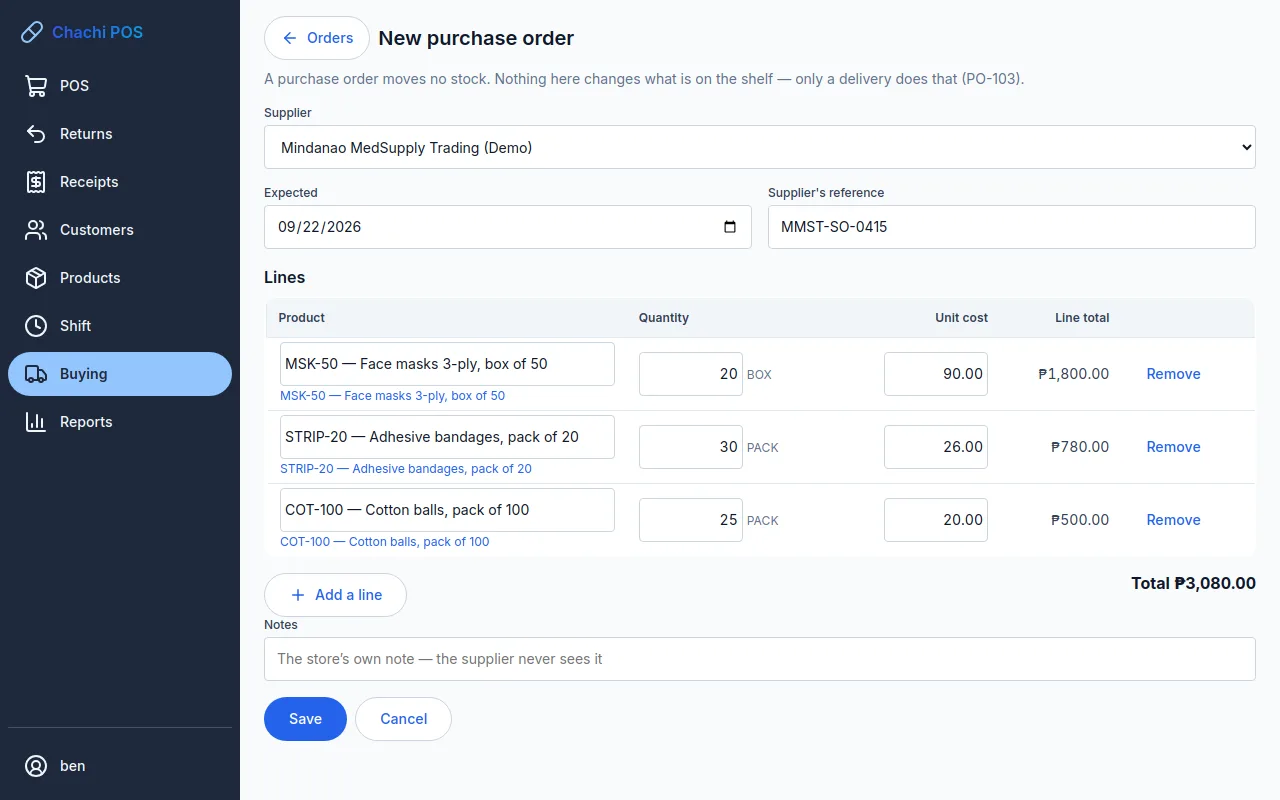
If you see Line 2 needs a product, a quantity and a unit cost., that line has no product chosen from the list, or its quantity is zero or empty. Choose the product again from the list.
Tip: You can order a product that is no longer sold (inactive), for example to receive the last delivery of it.
Send the order to the supplier
Who: Owner, Manager or Inventory
Chachi POS does not email or print purchase orders. You tell the supplier yourself (by text message, phone call or their order form) and then mark the order as sent.
- Open the order from the Purchase orders list (drafts are hidden until you untick Only what is still awaited).
- Give the supplier the order: the order number, each product and quantity.
- Click Send to supplier. You see Sent to the supplier and the status becomes Sent to supplier.
An order with no lines cannot be sent.
Change or cancel an order
Who: Owner, Manager or Inventory
Change a draft
Open the draft, change the lines or dates, and click Save. Nobody outside the store has seen it, so it is simply changed.
Change an order already sent
Open the order. The screen warns that it has already been sent. Change what you need and click Save as revision 2 (or the next number). The order keeps its number and gets a new revision, shown as rev 2 in the list. Tell the supplier which revision is the current one. Changing only the Notes does not make a new revision.
Once any delivery has been received against an order, the order cannot be changed any more. Raise a new order for anything further.
Cancel an order
- Open the order and click Cancel order.
- Type why it is being cancelled. A reason is required and goes on the audit trail.
- Click Cancel order in the box. You see Order cancelled.
An order that has had any delivery against it cannot be cancelled. The message says … has already had goods delivered against it and cannot be cancelled.
What the order statuses mean
The Purchase orders list shows only orders you are still waiting for, unless you untick Only what is still awaited or choose a status.
| Status | Meaning | What you can do |
|---|---|---|
| Draft | Saved, not yet sent. | Edit, send, cancel |
| Sent to supplier | The supplier has it; nothing has arrived yet. | Change as a new revision, receive, cancel |
| Partly received | Some of it has arrived. | Receive the rest |
| Received | Everything ordered has arrived. | Nothing; it is finished |
| Cancelled | Stopped, with the reason shown. | Nothing |
The status changes by itself when you post a delivery. You never set Partly received or Received by hand.
Receive a delivery against an order
Who: Owner, Manager or Inventory
Do this while you count the goods, with the supplier's delivery receipt (DR) in your hand.
- Click Buying. Find the order and click Receive on its row (or open the order and click Receive delivery).
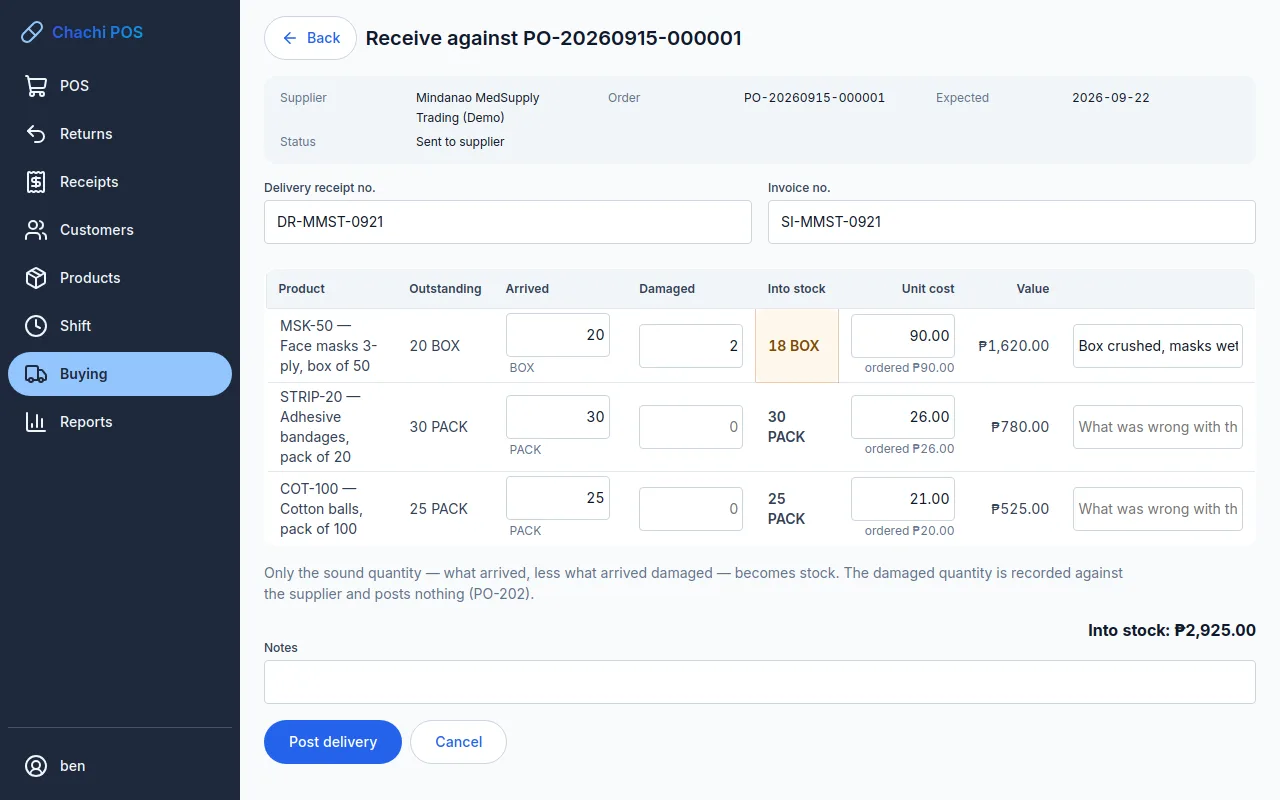
- The screen Receive against PO-… lists every product still outstanding. Arrived is filled in with the outstanding quantity and Unit cost with the ordered cost.
- Type the Delivery receipt no. and the Invoice no. from the supplier's papers.
- For each line, correct Arrived to what you actually counted.
- If some arrived broken, leaking or unusable, type how many in Damaged and say what was wrong in the box at the end of the line. Into stock shows what will be added: arrived minus damaged.
- Change Unit cost to what the supplier actually charged on the invoice. The ordered cost is shown under the box so you can compare.
- Check the total Into stock: ₱… against the invoice.
- Click Post delivery. You see a message like GR-20260915-000001 posted — ₱4,250.00 into stock, and the order opens with its new status.
The order screen then shows Received and Outstanding for each line and, under Deliveries against this order, each delivery with its number, date and value.
Part deliveries
If only part of the order came, type what arrived. For a product that did not come at all, type 0 in Arrived. The line turns grey, it is left out of this delivery, and its batch and expiry boxes are no longer needed. The order becomes Partly received and stays in the list. When the rest comes, click Receive again; only the products still outstanding are listed.
If the rest is never coming, close the order short (see Close an order short).
Damaged items count as delivered against the order. They reduce what is still outstanding, but they do not go into stock.
Receive a delivery without an order
Who: Owner, Manager or Inventory
Use this when goods arrive with no purchase order behind them: a sales agent's walk-in delivery, or stock you bought and paid for at another shop.
- Click Buying, then Receive without an order. The screen is called Receive a delivery.
- Choose the Supplier. A delivery always needs one. If it is a new source, add it first under Suppliers.
- Type the Delivery receipt no. and Invoice no. if there are any.
- On the first line, type in the Product box and choose the product from the list.
- If the product is batch-tracked, Batch no. and Expiry appear under it: type them from the box (see Batch-tracked products on a delivery).
- Type Arrived, any Damaged, and the Unit cost you paid.
- Click Add a line for each further product.
- Click Post delivery.
There is no button to remove a line here. If you added one line too many, click Cancel and start again. Each product can be on a delivery only once, so put the whole quantity on one line.
Tip: If you paid for the goods from the cash drawer, also record the money as a cash out on your shift. See Cash in and out of the drawer.
A product that has been made inactive cannot be received without an order. Make it active again first (Products and prices).
Costs and the average cost
Each product has one average cost. It is what the gross profit on every sale is worked out from, so the unit cost you type on a delivery matters.
- Only a delivery (and a few stock corrections) changes the average cost. Selling, writing off or returning stock never changes it.
- The new average mixes what you already had with what just came in: (units on hand × old average + units into stock × unit cost) ÷ (units on hand + units into stock).
- Damaged units are not counted, because they did not go into stock.
Example: you have 200 tablets at an average of ₱1.00. A delivery brings 300 tablets at ₱1.20. The new average is (200 × ₱1.00 + 300 × ₱1.20) ÷ 500 = ₱1.12.
Only the owner sees a product's average cost in the product editor. Anyone who can see the Inventory valuation report sees it there (Reports).
Important: type the cost the supplier charged, per base unit. A cost typed per box instead of per tablet makes every profit figure for that product wrong, and a posted delivery cannot be edited.
Batch-tracked products on a delivery
In a pharmacy, most medicines are batch-tracked: their stock is kept by batch number and expiry date so the earliest expiry is sold first and a recall can find every buyer (Stock, expiry and counts).
On the delivery screen, a batch-tracked line has two more boxes under the product's name: Batch no. and Expiry. Products that are not batch-tracked (face masks, bandages, cotton) do not have them.
- Find the batch or lot number printed on the box, usually beside Lot, Batch or B.N., and type it exactly in Batch no.
- Choose the expiry date printed on the box in Expiry.
- Fill in the rest of the line as usual and click Post delivery. The batch is created with its expiry date, and from then on the earliest expiry is sold first.
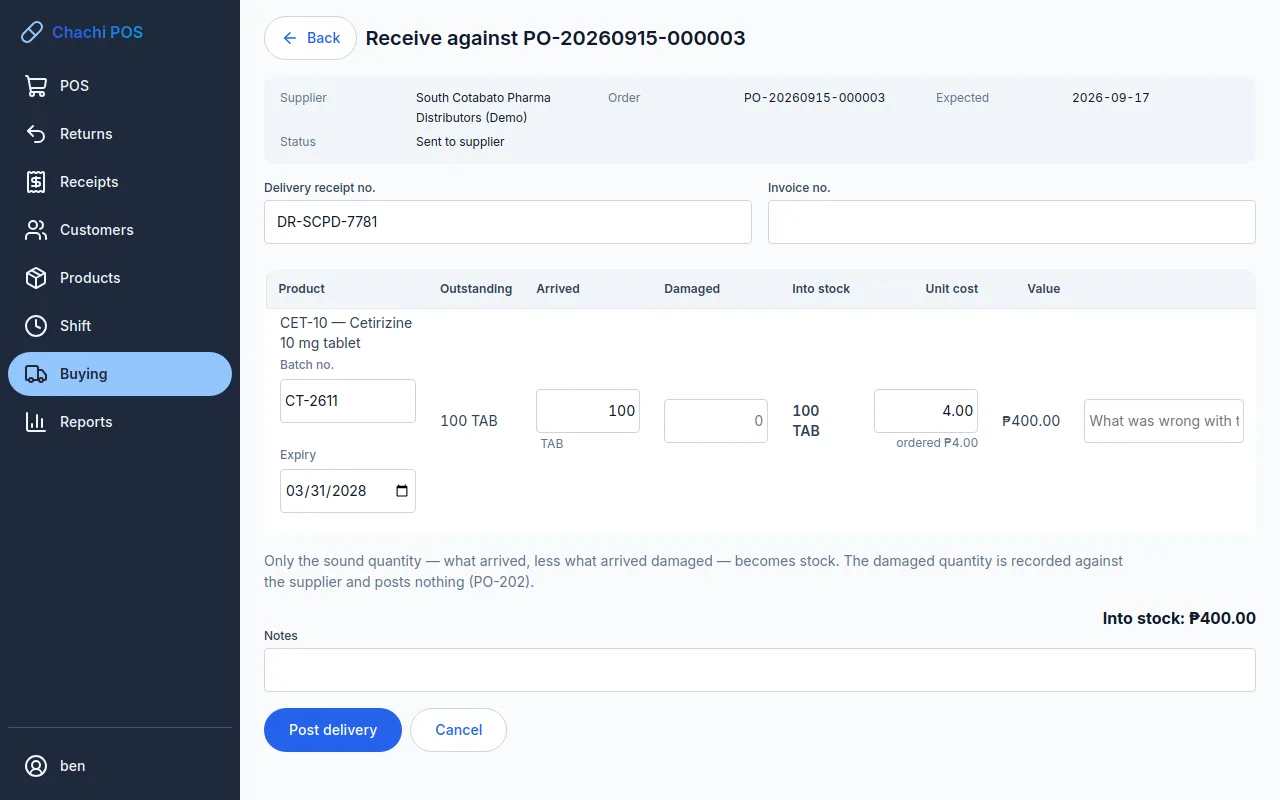
Post delivery does not go ahead while a batch-tracked line has either box empty. If the same batch number arrives again on a later delivery, its stock is added to the same batch.
Two batches of the same product
A delivery takes one batch per product. When a product arrives in two batches (for example 3 boxes expiring in March and 2 expiring in June), receive them one after the other:
- Receive the first batch: type only its quantity in Arrived, with its batch number and expiry, and post. The order becomes Partly received.
- Click Receive again on the same order. Type the second batch's quantity, number and expiry, and post.
For a delivery without an order, record each batch as its own delivery.
Important: check the expiry date before you post. A date that has already passed is accepted, but that stock is expired as soon as it arrives and cannot be sold. Refuse expired stock at the door instead of receiving it.
When the delivery does not match the order
Who: Owner, Manager or Inventory. Some cases need a Manager or Owner to approve.
Less arrived than was ordered
Type what really arrived. The rest stays outstanding and the order becomes Partly received. Receive the rest when it comes.
If a whole product on the order did not come, type 0 in its Arrived box and post the rest. It stays outstanding on the order.
Close an order short
When part of an order came and the rest is not coming (the supplier is out of it, or you will buy it elsewhere):
- Open the order. It shows Partly received.
- Click Close short…. The box names what will not come.
- Type why, for example Supplier out of stock until next quarter, and click Close short.
The order shows Closed short with the date and reason, and a Not delivered column in place of Outstanding. What arrived stays received and no stock moves. A closed order cannot take another delivery; if the goods turn up later, use Receive without an order.
An order with nothing received yet is not closed short: click Cancel order instead, with the reason. An order that has had goods delivered cannot be cancelled.
More arrived than was ordered
Type the real quantity. When you click Post delivery, extra quantity needs approval:
- If you are signed in as a Manager or Owner, your own login is the approval and the delivery posts.
- If you are signed in as Inventory, a box PO-204 — authorisation required opens. A Manager or Owner types their name in Approver and their Password and clicks Approve. Then click Post delivery again.
The delivery is marked over-receipt on the order.
The price is different from the order
Type the price actually charged. If it is more than 10% above or below the ordered cost, it needs the same approval as above, in a box marked PO-205 — authorisation required. The message says how far off it is, for example Face masks 3-ply, box of 50: ₱105.00 is 16.7% above the ordered cost of ₱90.00. The delivery is marked cost variance.
On a delivery without an order, the price is compared with the product's current average cost instead. The 10% limit is the owner setting Receipt cost variance needing authorisation, in basis points under Purchasing (1000 means 10%; see Change a setting).
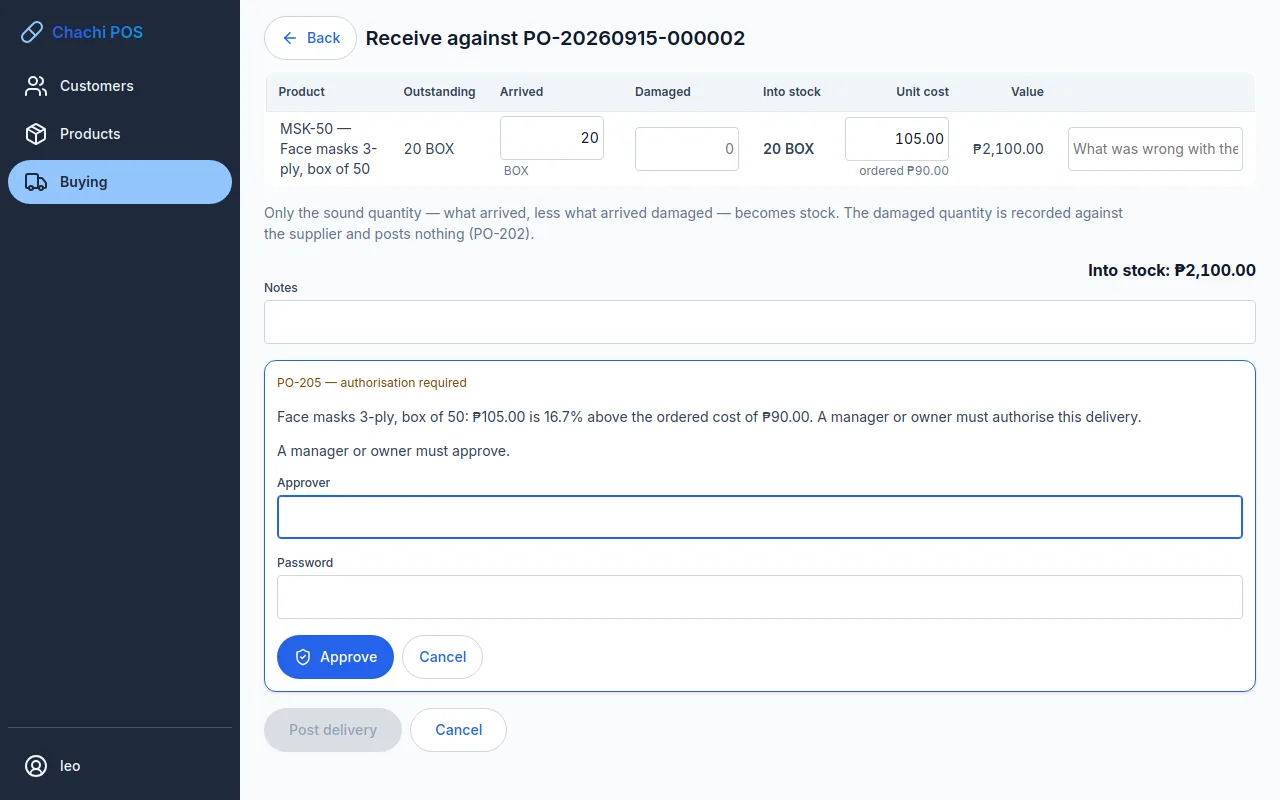
Tip: If a big price change is a typing mistake, click Cancel in the approval box, fix the cost, and post again.
Some items arrived damaged
Type the number in Damaged and a short note. Only the good ones go into stock. If the supplier later replaces them, record the replacements with Receive without an order.
A product arrived that you did not order
A delivery against an order can only contain products on that order. If you are keeping the extra product, record it separately with Receive without an order. If you are sending it back, do not record it.
You posted a delivery with a mistake
A posted delivery cannot be edited or deleted. If the quantity was wrong, correct the stock with a stock adjustment, choosing a reason such as "Data entry correction" (Stock, expiry and counts). Tell the owner if the cost was wrong, because it has already changed the product's average cost.