
Returns, voids and reprints
How to put a mistake right after a sale: cancel it with a void while the shift is open, take goods back with a return, and find or print a receipt again.
Void or return: which one?
There are two ways to correct a sale, and they mean different things. A void says the sale never happened — for example you scanned the wrong item and the customer is still at the counter. A return says the goods came back — for example the customer brings a box back the next day.
| Void | Return | |
|---|---|---|
| When | Only while the shift that made the sale is still open | Any time; after 7 days a manager or owner approves |
| How much | The whole sale | Any lines, any quantity up to what was sold |
| Who | A manager or owner; a cashier only with a manager or owner approving | Cashier, Manager or Owner |
| Stock | Every item goes back into stock | Each line goes back on the shelf or is written off |
| Money | The payment is reversed; cash is handed back | Refunded in cash, taken off the customer's balance, or held as store credit |
| Start from | The sale's receipt screen | Returns in the menu |
Tip: If only one line was wrong and the shift is still open, you can void the whole sale and ring it up again correctly, or leave the sale and return just that line.
Find a receipt from your shift
Who: Cashier, Manager or Owner
The receipt screen appears when a sale completes, and Enter takes you to the next customer. To go back to a sale later in the shift:
- Click Receipts in the menu.
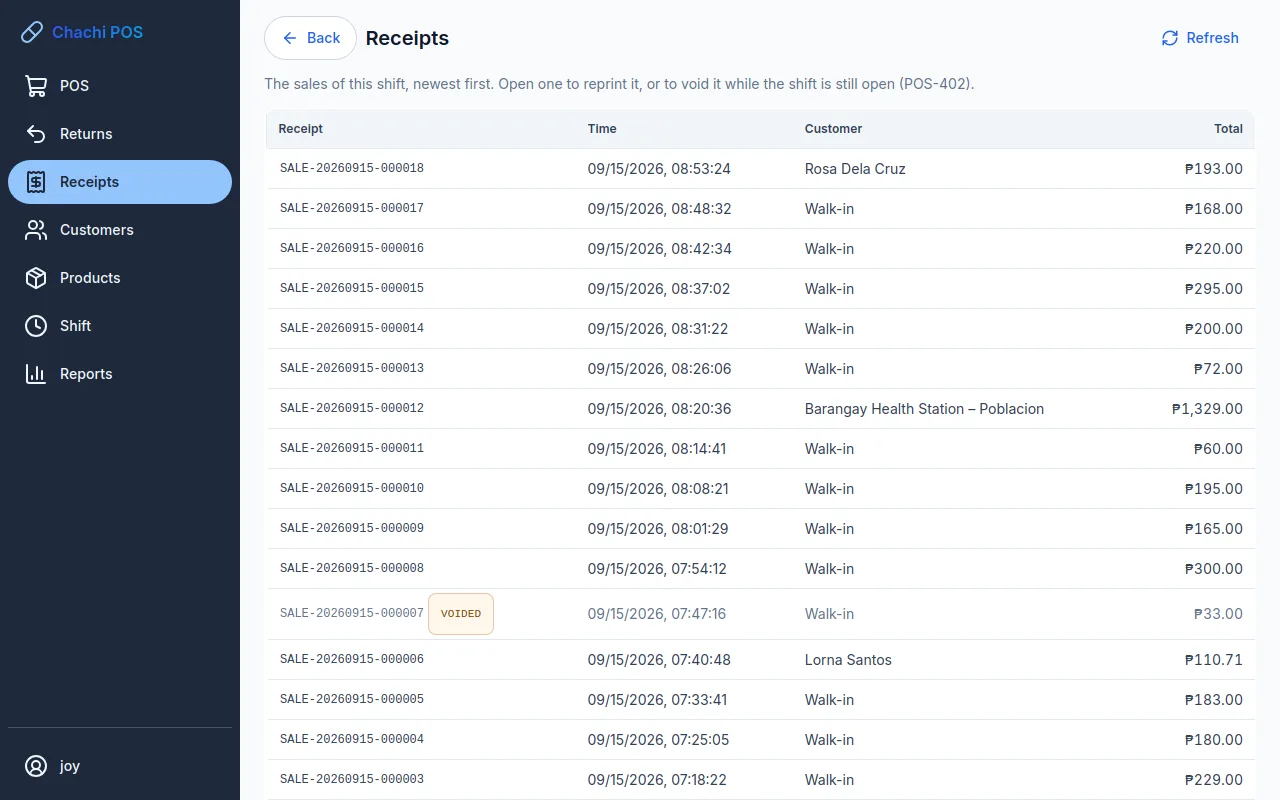
- The list shows the sales of your current shift, newest first: Receipt number, Time, Customer (or Walk-in) and Total. Click Refresh to update it.
- Click a sale (or select it and press Enter) to open its receipt screen. Click Receipts at the top to come back to the list.
A voided sale stays in the list, greyed and marked voided. Sales with goods taken back are marked returned or part returned.
A sale from an earlier shift
The Receipts list only holds your current shift. When your shift is closed it says so. For an older sale:
- To take goods back, find it on the Returns screen by receipt number or customer name (see Take goods back).
- A receipt from an earlier shift cannot be printed again in this version.
- Managers and owners see the day's sales, including voided ones, in Reports.
Print a receipt again
Who: Cashier, Manager or Owner
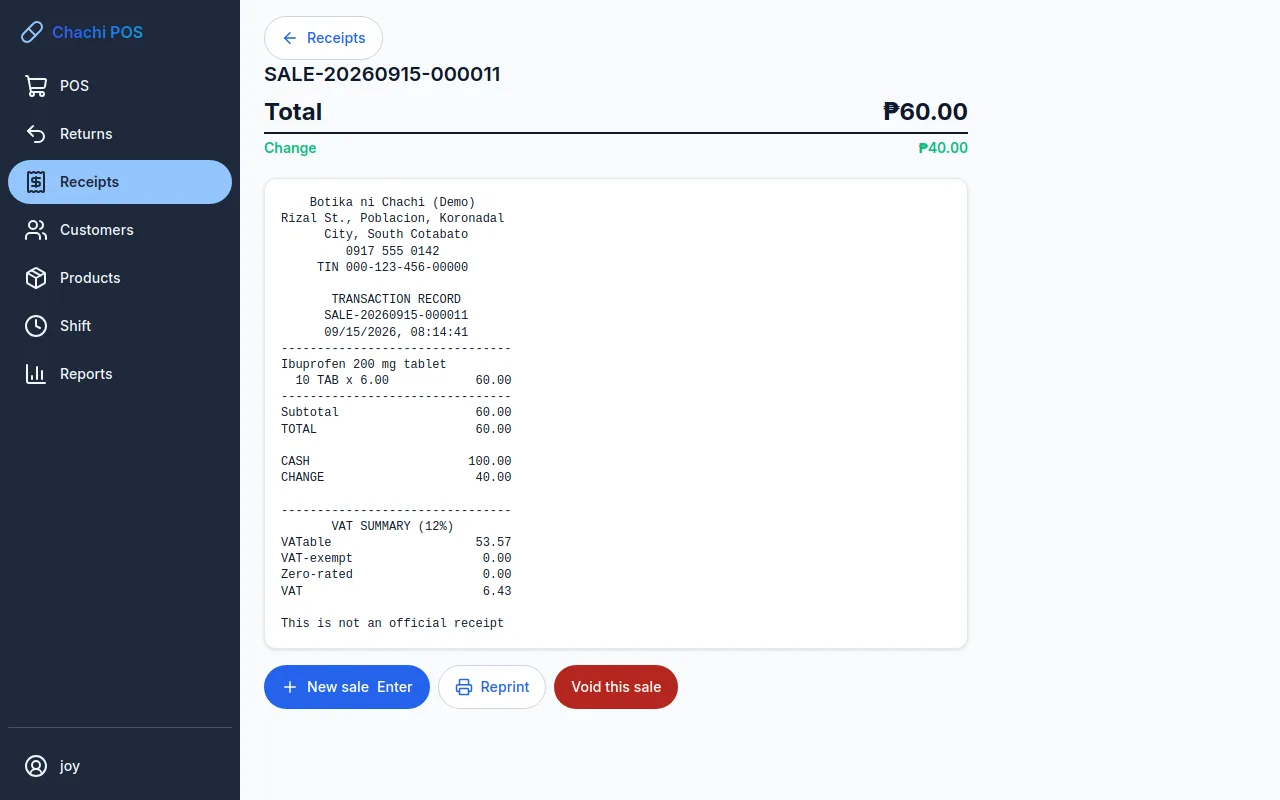
- Open the sale's receipt screen: it is on screen right after the sale, or open it from Receipts.
- Click Reprint. You see Reprinted and marked REPRINT.
The copy carries *** REPRINT *** above the words This is not an official receipt, so nobody can pass it off as a second sale. Every reprint is recorded with who printed it and when.
If the printer does not print, the sale is not affected. The app says why, for example Marked REPRINT. The printer is not connected — check its cable and that it is switched on. Fix the printer (see Troubleshooting) and click Reprint again.
Tip: if the receipt did not print when the sale completed, use Print it on the receipt screen instead of Reprint. It prints the receipt the customer should have had, without the REPRINT mark (see The receipt).
Void a sale
Who: Manager or Owner; a Cashier with a manager or owner approving
Use a void when the sale should never have happened: a wrong item, the wrong customer, or the customer changed their mind before leaving. A void cancels the whole sale, and only while the shift that made it is still open.
- Open the sale's receipt screen (right after the sale, or from Receipts).
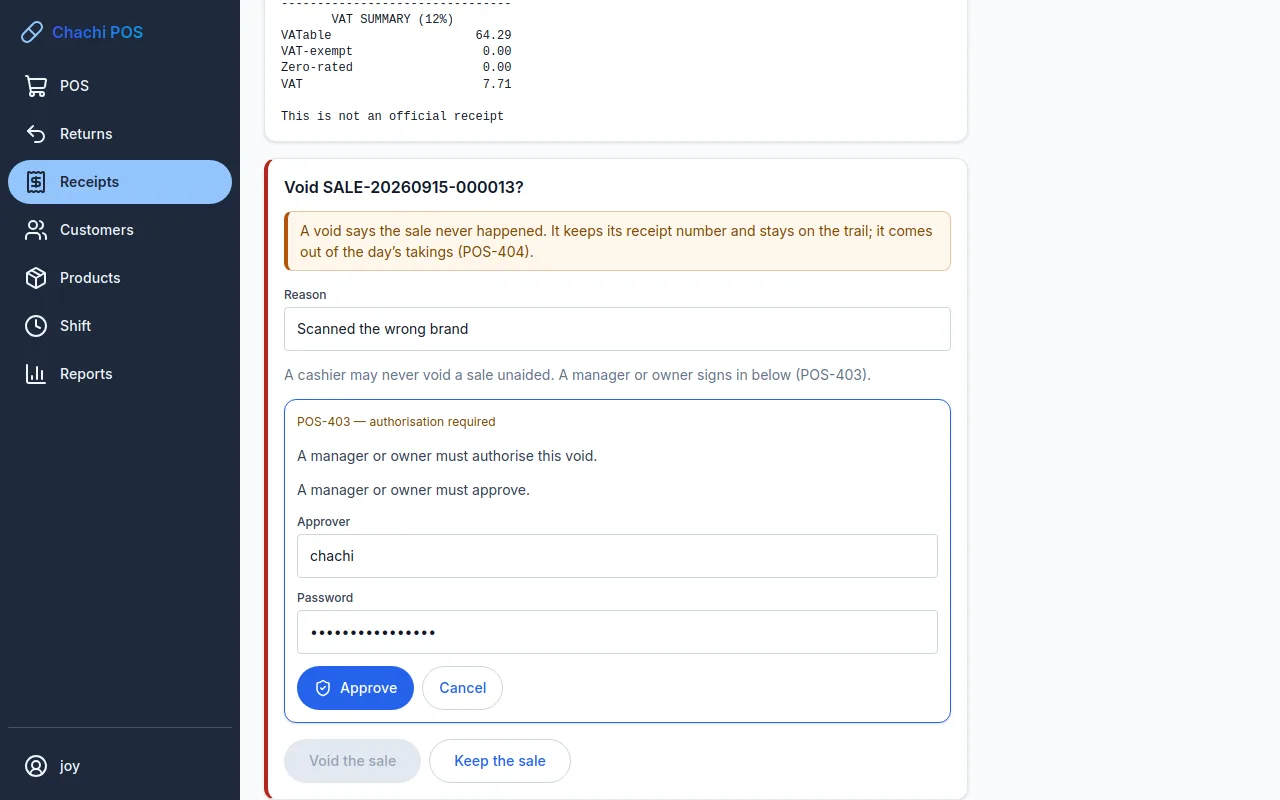
- Click Void this sale. A panel asks Void SALE-…?
- In Reason, type what went wrong, for example Scanned the wrong brand. A reason of at least four letters is required.
- If you are a cashier, call a manager or owner. They type their own username in Approver and their password in Password, then click Approve. You see Authorised by …. (A manager or owner voiding a sale only types the reason.)
- Click Void the sale. To stop, click Keep the sale.
- The screen says SALE-… is voided. and what to do: Hand back ₱… The drawer is open., or Nothing was paid in cash, so there is nothing to hand back.
What a void does:
- Every item goes back into stock.
- A credit (utang) sale comes off the customer's balance.
- The cash comes off what the drawer should hold at closing, so the count still balances.
- The sale keeps its receipt number and stays on the records, marked voided. It is left out of the day's sales.
The app does not send GCash or QR Ph money back. If the customer paid that way, the money has to be returned to them outside the app.
When a void is refused
Instead of the Void this sale button, the screen says why:
- That shift has been closed, so the correction is a return, not a void. Once a shift is closed its sales cannot be voided. Take the goods back as a return.
- … has had goods returned against it. Correct the rest with a return. Part of the sale really happened, so it can no longer be voided.
- … has already been voided.
A credit sale that the customer has already paid something towards cannot be voided either; the app tells you to use a return.
Take goods back (return)
Who: Cashier, Manager or Owner, signed in with a password and with a shift open
A return is always made against the sale the goods came from. Ask the customer for the receipt, or for the name on the sale.
- Click Returns in the menu. The Return goods screen opens.
- In Receipt number or customer, type the receipt number (the last few digits are enough) or the customer's name, and click Find. Click Find with the box empty to list the most recent sales.
- Find the sale in the list (Receipt, When, Customer, Total, Status) and click Return from this.
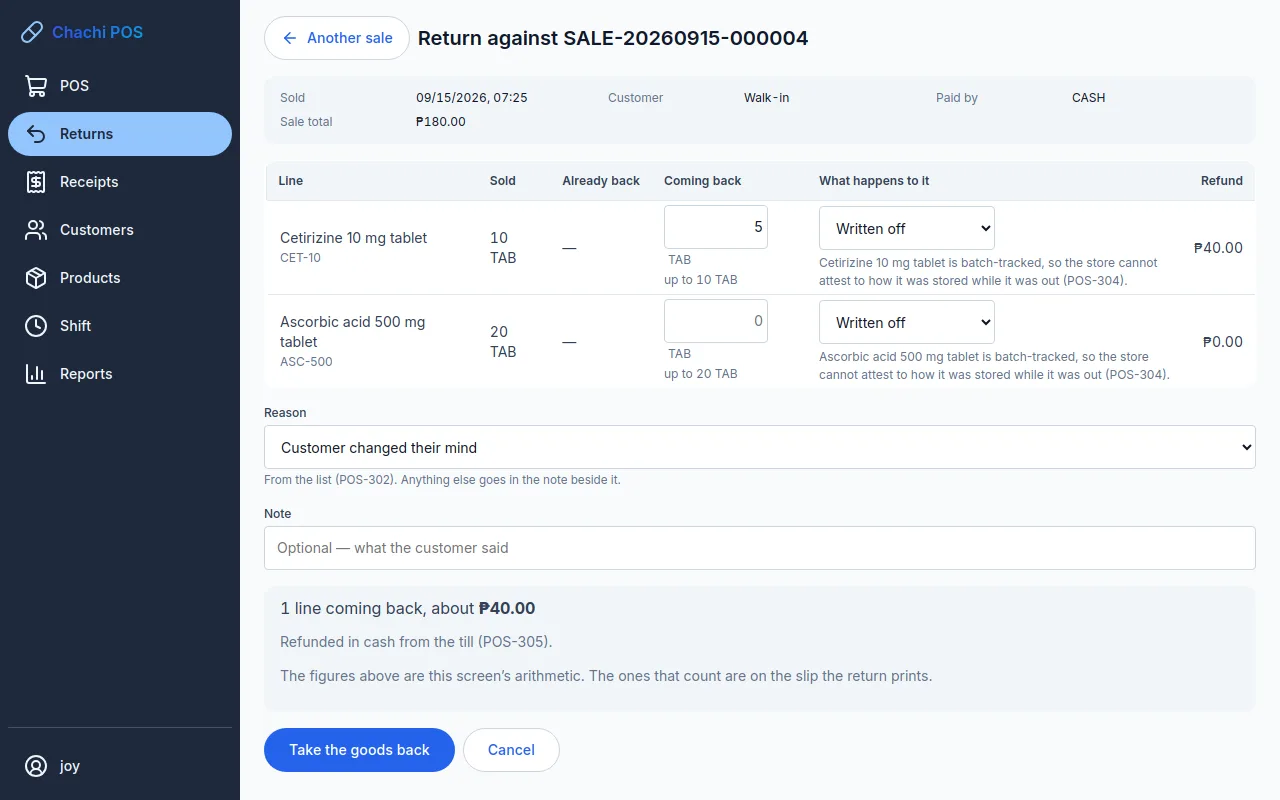
- The screen Return against SALE-… shows how the sale was paid and one row per item. For each item coming back, type the quantity in Coming back. It is in the product's single unit (tablets, bottles), even if it was sold by the box, and it can be up to the figure shown under the box. Leave items that are not coming back empty.
- In What happens to it, choose Back on the shelf or Written off for each item (see below).
- Choose a Reason from the list. Add a Note if it helps, for example what the customer said.
- Read the preview: how much comes back and how it will be refunded.
- Click Take the goods back.
- The screen shows RET-… — goods taken back, where the money went, and what happened to each item. A Return acknowledgement prints: hand it to the customer. Click Done, or Another return.
Back on the shelf or written off
Back on the shelf adds the item to stock so it can be sold again. Written off records it as returned and then removes it as damaged, so it is never sold again.
In a pharmacy, these start on Written off: any batch-tracked product (new products start batch-tracked), and any product in the categories Medicines, OTC Medicines, Vitamins, Supplements, Vitamins & Supplements, Vaccines or Biologics. The reason is written under the choice — the store cannot know how the item was stored while it was out. Putting one of these Back on the shelf needs a manager or owner (see below). Other products start on Back on the shelf. The owner can change the list of categories in Settings.
Important: Do not put a returned medicine back on the shelf unless its seal is intact and you are sure how it was kept. It will be sold to the next customer.
The reasons
The reason comes from a list set in Settings. It starts with: Wrong item sold, Wrong item bought, Damaged on arrival, Expired stock, Seal broken or packaging tampered, Adverse reaction reported, Duplicate purchase, Customer changed their mind. Anything else goes in the Note.
If something goes wrong
- The sale is not in the list: voided sales and sales already returned in full are not listed — there is nothing left on them.
- … only … is left to return. Some of it was already returned earlier; the Already back column shows how much.
- A PIN session cannot process a return. Sign in with your password. You unlocked the screen with your PIN; sign in with your password instead.
- Open your shift before you process a return. See Open your shift.
Agrivet store: the categories that start on Written off are Veterinary, Veterinary Medicines, Medicines, Vaccines and Biologics, and the reasons include Animal refused the feed instead of the two medicine reasons.
When a return needs a manager
Who: A Manager or Owner approves
Two things need a manager or owner:
- A late return. The store accepts returns for 7 days after the sale, counted in calendar days (the owner can change this in Settings). For an older sale, a note at the top of the screen says so, for example This sale was 10 days ago and the return window is 7 days. A manager or owner will have to authorise it. Tell the customer before the goods come out of the bag.
- Putting a medicine back on the shelf when it started on Written off. The line warns: A manager or owner must authorise putting this back.
- Fill in the return as usual and click Take the goods back.
- An approval form appears with the reason. The manager or owner types their own username in Approver and their password in Password, then clicks Approve.
- You see … authorised this return. Click Take the goods back again.
A manager or owner making the return themselves is not asked: their own sign-in is the approval. Either way, the return records who approved it.
Where the refund goes
You do not choose how the money goes back; the app follows the store's rules and the preview tells you before you confirm:
- A cash, GCash or QR Ph sale is refunded in cash from the drawer, and the drawer opens. The app does not send money to a GCash account.
- A credit (utang) sale is refunded by taking the amount off what the customer owes (Off your balance on the slip). If that is more than they owe, the rest is held as store credit.
- A sale paid partly on credit, while the customer still owes: the cash part is also held as store credit instead of being paid out.
Store credit can pay for a later sale (see Take payment) and shows on the customer's profile (Customers and utang).
The refund is based on what the customer actually paid for that line, after any discount — not today's price. The preview says about; the exact figures are on the printed acknowledgement. A cash refund comes off what the drawer should hold at closing (Cash and closing the shift).
Why a sale is never edited or deleted
Once a sale is completed, nobody can change or delete it — not a cashier, not a manager, not the owner. A mistake is corrected by adding a new record: a void or a return. The original sale is always still there.
This keeps everything in agreement: the cash in the drawer, the stock on the shelf, what each customer owes, and the paper the customer is holding. Receipt numbers run in order with no gaps; a voided sale keeps its number and appears in the reports as voided. Every void, return and reprint records who did it, who approved it, when and why, so an honest cashier can always show what happened.