
Cash and closing the shift
Every peso that goes into or out of the drawer belongs to somebody's shift. This chapter shows how to open your shift with a counted float, record cash you add or take out during the day, count the drawer at the end, explain a difference, and what the owner checks afterwards.
Open your shift
Who: Cashier, Manager or Owner
You need your own open shift before you can sell, take a customer's payment, give a refund or move cash in or out of the drawer. The shift is yours alone: nobody else can sell on it, and at the end you count the drawer against it. Inventory users do not have shifts.
- Sign in with your username and password.
- Click Shift in the menu on the left. On a phone, tap the menu button at the top first. (A cashier lands on the POS instead; it says "Open your shift before selling" — click Open shift there.)
- Count the cash in the drawer — the change you start the day with.
- Type the amount in Opening float (₱). If the drawer is empty, type 0.
- Tick I have counted this and it is correct.
- Click Open shift. You see "Shift open." and the Shift screen with the drawer figures. You can now sell.
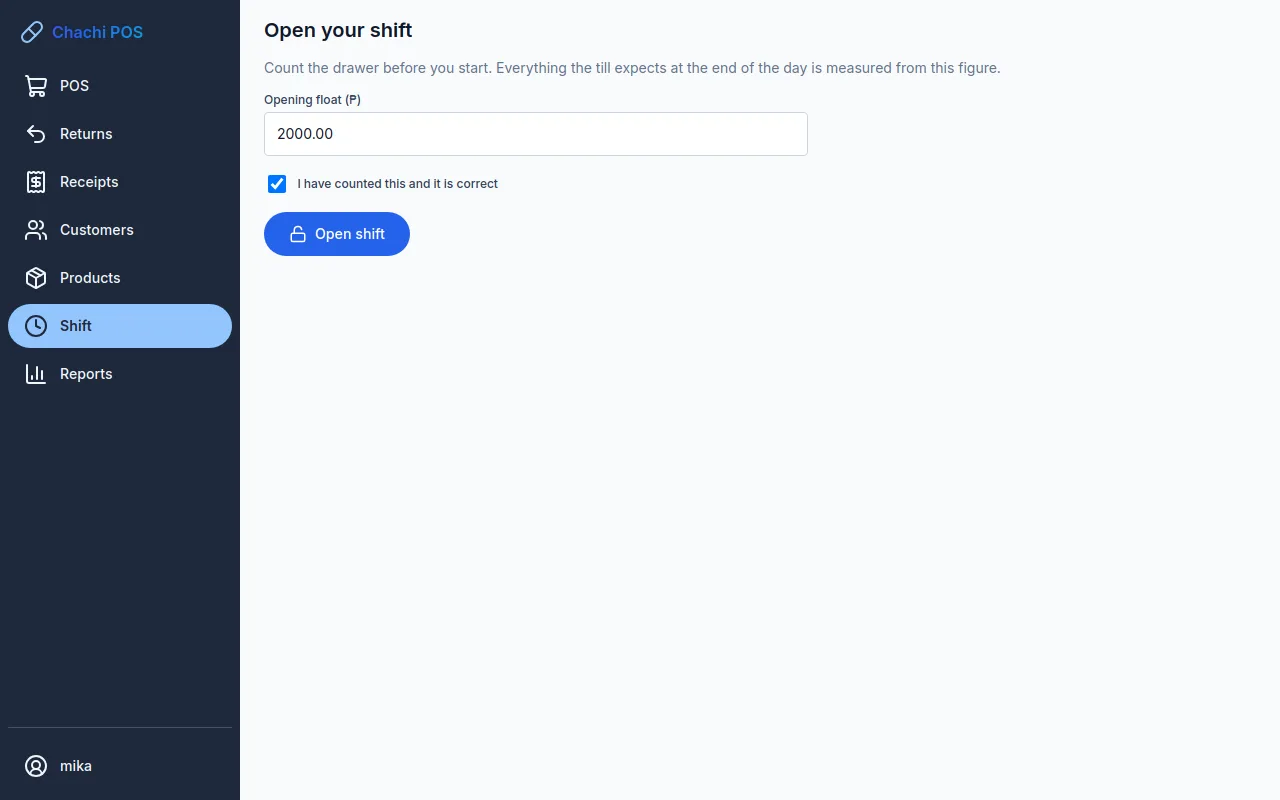
If you do not tick the box, the shift does not open and Chachi POS asks you to count the float and confirm it. Each person can have only one shift open. If yours is already open, the Shift screen shows it instead of this form, and you carry on with it.
Tip: When the screen locks, your PIN unlocks it only while your shift is open. After you close your shift, sign in again with your password.
If a message about the subscription appears instead of "Shift open.", see When the subscription has ended.
If a shift was left open
Who: The person whose shift it is; the Owner if an approval is needed
A shift never closes by itself. If somebody forgets to close, the shift stays open, and the next day's sales go into the same shift. Chachi POS does not close it for you, because a close needs a real count of the drawer.
- If it is your own shift: the Shift screen shows "Open since" with yesterday's date. Close it first with a real count (see Count the drawer and close), then open a new shift with today's float. Otherwise two days are counted as one.
- After 24 hours the dashboard shows an alert: "(name) has had a shift open since …, longer than the 24-hour maximum. Close it with a count; it is not closed automatically." The owner can change the 24 hours in Admin → Settings, under Hours a shift may stay open before it raises an alert.
- A long shift that closes with a difference beyond the store's tolerance needs the owner's approval. See When the drawer is short or over.
- If it is another person's shift: that person must sign in and close it. In this version a manager or owner cannot open another person's shift from the menu to close it for them.
Put cash in or take cash out
Who: Cashier, Manager or Owner, on their own open shift
Record every movement of cash that is not a sale, a refund or a customer's payment: the owner taking cash, paying a delivery from the drawer, petty cash, adding coins for change, or taking money to the bank. If you do not record it, the drawer will not balance at the end of the day.
- Click Shift in the menu.
- Click Cash in / out. The screen shows how much the drawer should hold right now.
- In Direction, choose Cash out — money leaving the drawer or Cash in — money added to the drawer.
- Type the amount in Amount (₱).
- Choose a Reason from the list.
- If it helps, type a note in Notes — for example the supplier's name and invoice number.
- Click Record. You see "Recorded.", the cash drawer opens if one is connected, and you are back on the Shift screen with the new figure.
| Reason | Use it when |
|---|---|
| Owner withdrawal | The owner takes cash out of the drawer. |
| Petty cash | Small store expenses paid from the drawer, such as water or cleaning supplies. |
| Change fund top-up | You add coins or small bills for change (Cash in). |
| Bank deposit | Cash leaves the drawer to go to the bank. |
| Supplier paid in cash | You pay a delivery from the drawer. |
| Correction of a miscount | You find you made a counting mistake earlier in the shift. |
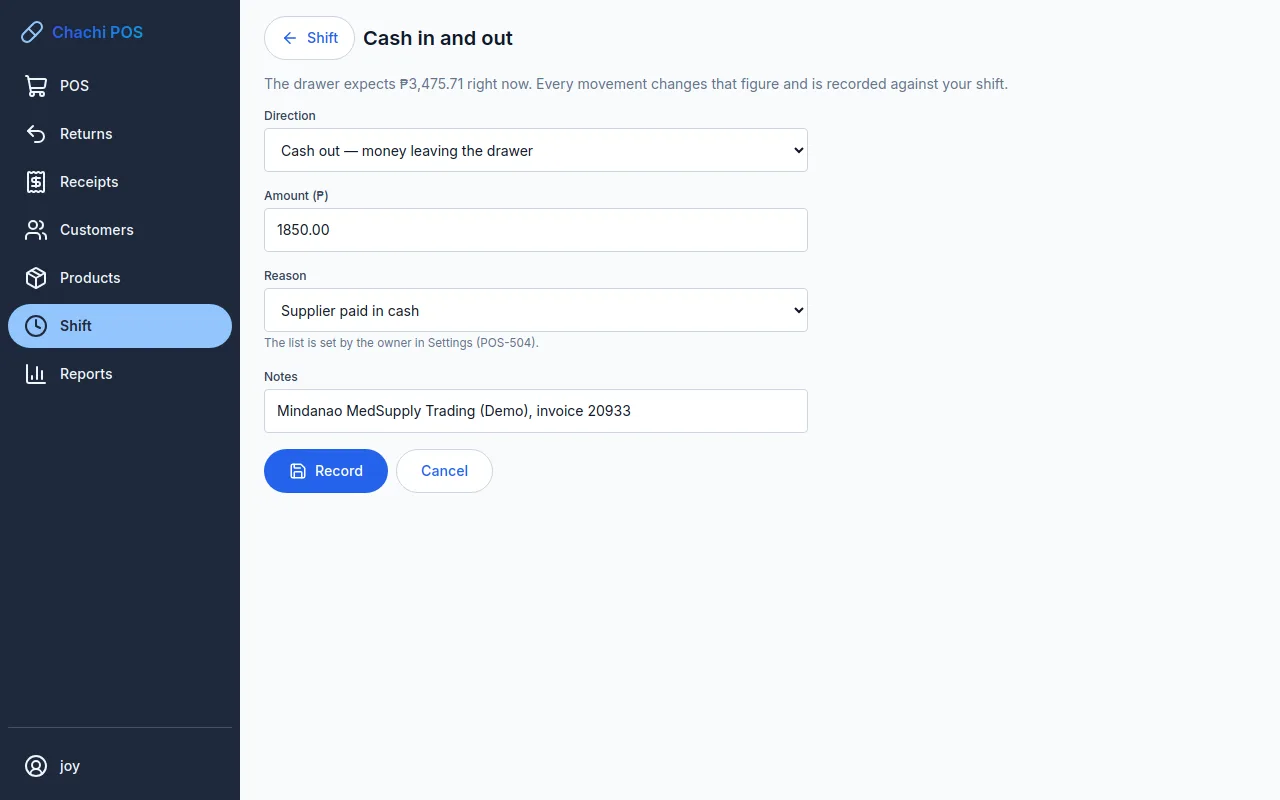
Tip: A cash out for a delivery records only the money. To add the goods to your stock, record the delivery as well — see Suppliers and deliveries.
You cannot take out more than the drawer should hold. Chachi POS refuses and says "There is ₱… in the drawer and this would take out ₱…". The list of reasons is set by the owner in Admin → Settings, under Reasons till cash may be moved in or out.
Important: A cash in or cash out is never a sale. It does not change stock, sales figures or anyone's balance. Do not use Cash in for a sale you forgot to ring up — ring up the sale.
See what the drawer should hold
Who: Cashier, Manager or Owner
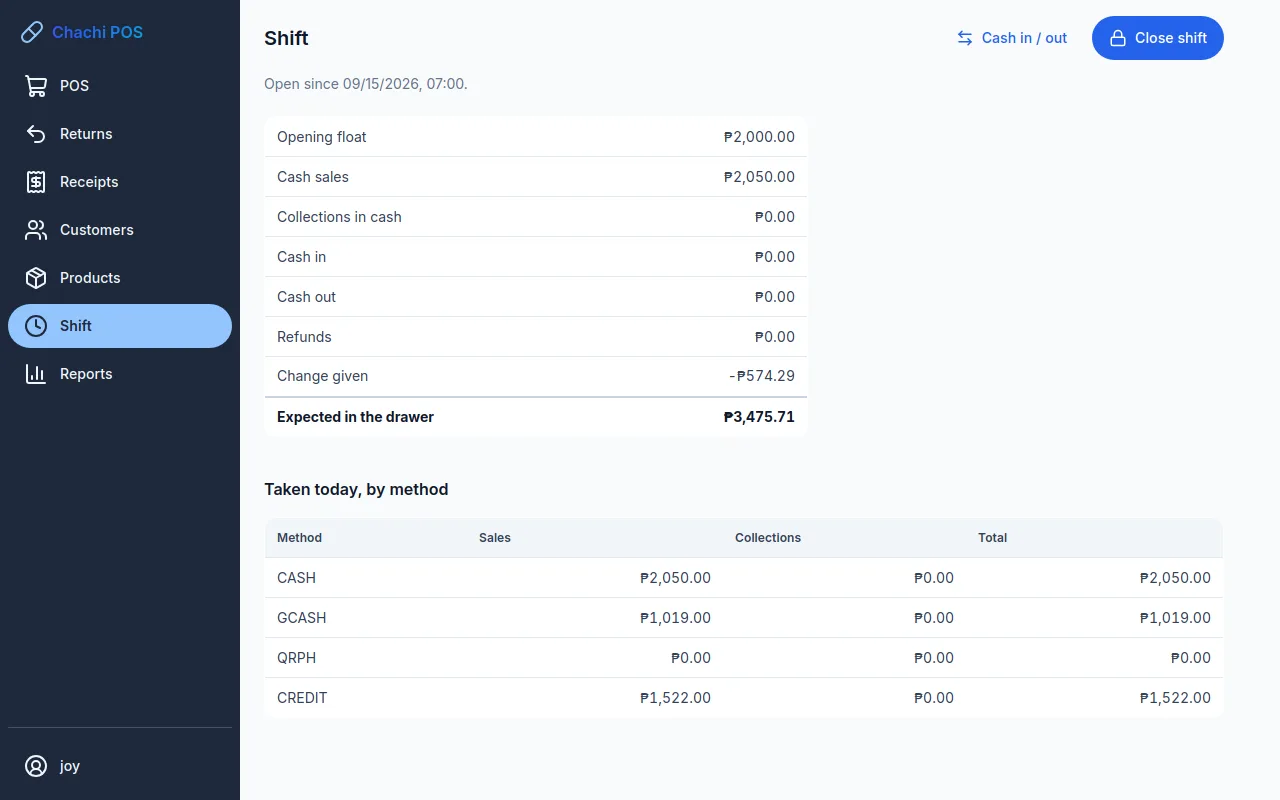
Click Shift at any time during the day. The table shows how Chachi POS works out the cash that should be in the drawer, line by line, so you can check it yourself:
- Opening float, plus Cash sales (the cash customers handed over), plus Collections in cash (customers paying what they owe), plus Cash in;
- minus Cash out, Refunds and Change given;
- equals Expected in the drawer.
Under it, Taken today, by method shows sales and collections for CASH, GCASH, QRPH and CREDIT.
Before you close
Who: Cashier, Manager or Owner
- Finish or clear every sale. When the shift closes, the cart on the POS screen and every parked cart are thrown away. Nothing in them was sold, so stock is not affected, but they cannot be brought back — ring them up again on the next shift.
- Correct mistakes now. A manager or owner can void a sale only while its shift is still open. After the close, the only way to take a sale back is a return. See Returns, voids and reprints.
- Get your GCash and QR Ph totals. Open the store's GCash or QR Ph merchant history and add up what came in during your shift.
- In a café, open orders stay open. An order sent to the kitchen and not yet paid is not in the drawer, so it is not in the count. The closing screen lists them — 2 orders are still open — Order 2 (Table 4), Order 3 (Table 2) — and whoever is on the counter next is paid for them. See In a café.
Count the drawer and close
Who: Cashier, Manager or Owner, on their own shift
- Click Shift, then Close shift. The Close the shift screen shows one row per payment method, with what Chachi POS expects.
- Count all the cash in the drawer, float included. Type it in the Counted box of the CASH row.
- Type the GCash total you received during the shift in the GCASH row.
- Type the QR Ph total in the QRPH row.
- Read the Variance column. A minus amount means you are short; a plus amount means you are over.
- If any row is out, type what happened in Reason for the variance.
- Click Count and close.
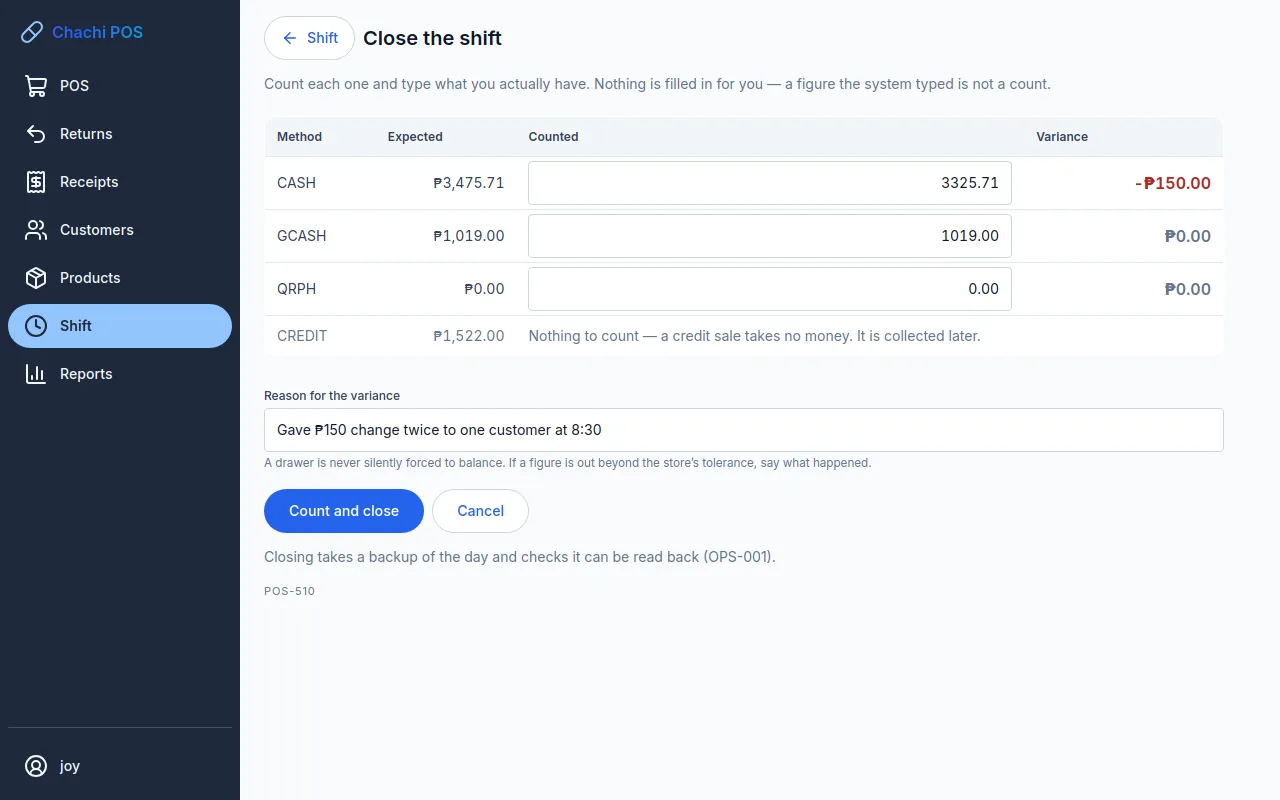
The CREDIT row has no box: "Nothing to count — a credit sale takes no money. It is collected later."
Important: A box you leave empty counts as zero. If you had GCash sales and leave GCASH empty, the whole GCash total shows as short. Never type the expected figure just to make it balance — count again instead.
When the drawer is short or over
Who: Cashier, Manager or Owner; the Owner approves a long shift
Small differences happen. The store sets a tolerance — ₱100 unless the owner changed it in Admin → Settings (Cash variance at shift close that requires a reason). It applies to each method separately.
- Within the tolerance: the shift closes. A reason is optional.
- Beyond the tolerance: the shift does not close until you give a reason. The message names the row, for example "CASH is ₱250.00 short, beyond the ₱100.00 tolerance. Closing needs a reason — the count is never silently forced to balance." Type the reason and click Count and close again.
Write what really happened, in plain words: "Gave ₱200 change twice to one customer", "GCash ₱150 from 3:10 pm not in the wallet yet". The reason is printed on the closing summary, shown to the owner on the dashboard, and kept in the audit trail with your name.
A shift open longer than the maximum
If the shift has been open longer than the maximum (24 hours unless changed) and a row is beyond the tolerance, an owner must approve the close.
- After you click Count and close, an approval panel appears.
- The owner types their username in Approver and their password in Password, then clicks Approve.
- You see that the owner authorised this close. Click Count and close again.
If the owner is closing their own shift, no approval is asked.
The closing summary and the backup
Who: Whoever closed the shift
After the close you see Shift closed. It tells you:
- The backup. Closing makes a backup of the day and checks that the copy can be read back: "The day is backed up and the copy was opened and checked". If a red message says the day is not backed up, your shift is still closed and nothing is lost, but tell the owner before you go home. The owner fixes it under Admin → Backups — see Users, settings and backups.
- The result: "The drawer balanced exactly.", or how much it is short or over, and whether that is within the tolerance.
- The reason you gave, and the table of expected, counted and variance per method.
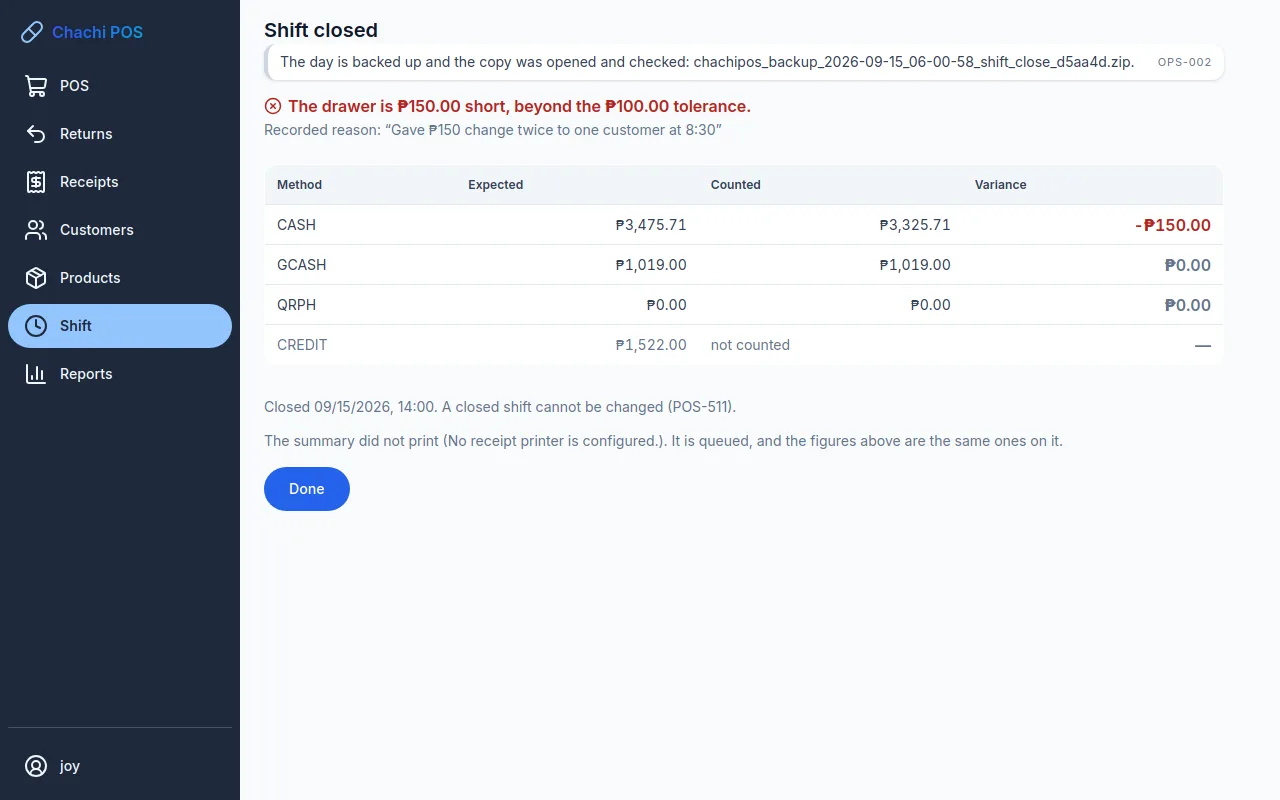
The SHIFT CLOSING SUMMARY prints on the receipt printer by itself: opening float, cash sales, collections, cash in and out, change given, the expected and counted amount for each method, the cash variance and the reason. Keep it with the counted cash.
Important: There is no button to print the summary again, and this screen cannot be opened again after you click Done. If it says "The summary did not print", write down or photograph the figures first.
Click Done. A closed shift cannot be changed. Anything you forgot — a refund, a cash out — goes into the next shift.
On Android: the backup goes to Documents/ChachiPharmacyPOS Backups if you allowed file access when the app was first opened; otherwise it stays in the app's own folder and is deleted if the app is uninstalled. Copy the backups off the tablet regularly.
Hand over to the next cashier
Who: Cashiers, Managers, Owners
There is no hand-over button. Each person has their own shift and their own count, so a hand-over is one close and one open.
- The outgoing cashier finishes or clears the cart and all parked carts. Parked carts belong to their shift; the next cashier cannot retrieve them.
- The outgoing cashier closes their shift, counting the drawer with the incoming cashier watching.
- The day's takings are removed as the store decides, leaving the change for the next shift.
- The incoming cashier signs in with their own username: click the outgoing cashier's name at the bottom of the menu, then Sign out.
- The incoming cashier counts what is left in the drawer and opens their own shift with that as the float.
Important: Chachi POS lets two people have shifts open at the same time, and each shift expects its own cash. If two cashiers share one drawer with two shifts open, neither count will be right. One drawer, one open shift.
What the owner or manager checks
Who: Manager or Owner
- The dashboard alerts (Reports in the menu). A close beyond the tolerance shows as, for example: Joy Mendoza closed … short by ₱250.00 — "Gave change twice". It stays for 7 days. Also look for a shift open too long, and for any backup warning — those cannot be dismissed.
- The Payments report, to see what was taken per method, and Reconciliation, to compare GCash and QR Ph with the wallet's own statement. See Reports.
- The printed closing summary, against the cash that was handed in.
- The audit trail (Owner: Admin → Audit). Filter What for "Shift closed with a variance beyond tolerance" or "Till cash moved in or out" to see every close and every cash in or out, with who did it and why.
When the subscription has ended
Who: Everyone is affected; only the Owner can renew
Chachi POS checks the store's subscription online at least once every 30 days. The dashboard warns in the last 7 days before it ends. After the end there are 7 days of grace in which everything still works.
After the grace period, no new shift can be opened. Clicking Open shift shows "The subscription ended on … and its grace period on …. Reports, export and backups still work; no new shift can be opened until it is renewed."
- A shift that is already open keeps working until it is closed. A sale in progress is never cut off.
- Once that shift is closed, nobody can open a new one — so nobody can sell, take payments or give refunds until the subscription is renewed.
- Reports, exports and backups keep working throughout.
- The same happens if the computer has not been online for 30 days: connect it to the internet and the owner clicks Check now under Admin → Subscription.
If the POS was never linked to the store, the message is "This POS is not linked to a store yet. The owner links it under Admin → Subscription." See Getting started and Troubleshooting.