
Units and packs
Chachi POS keeps every product's stock in one base unit, such as the tablet. Boxes, blisters and sacks are packs: fixed bundles of that unit. This chapter explains how that works when you buy, price, sell and count.
How units and packs work
Every product has exactly one base unit: the smallest thing you sell it in, such as a tablet (TAB), a capsule (CAP), a bottle (BTL) or a kilo (KG). Everything about the product is kept in that unit: the stock on hand, every stock movement, the price, the cost, the minimum stock and the stock count. There is no second stock figure in boxes.
A pack is a name for a fixed number of base units: 1 BLISTER = 10 TAB, 1 BOX = 100 TAB. You use a pack when you sell. The moment a pack is sold, the app turns it into base units, and that is what leaves the stock.
A worked example: Paracetamol 500 mg
The product's base unit is TAB. It has two packs, BLISTER = 10 TAB and BOX = 100 TAB. The retail price is ₱3.50 per tablet. It starts with no stock.
| What happens | What you enter | Stock moves | Stock on hand |
|---|---|---|---|
| A delivery of 5 boxes arrives, at ₱190 a box | Arrived 500 (TAB), unit cost ₱1.90 | +500 TAB | 500 TAB |
| A customer buys 1 box | 1, unit BOX | −100 TAB | 400 TAB |
| You open a box and sell 15 loose tablets | 15, unit TAB | −15 TAB | 385 TAB |
Both sales were charged per tablet: the box is 100 × ₱3.50 = ₱350.00 and the loose tablets are 15 × ₱3.50 = ₱52.50. Opening the box needed no step in the app. At the end the product list shows 385 TAB: that is 3 sealed boxes and 85 loose tablets on the shelf. The app always shows the figure in tablets and does not split it into boxes for you.
Agrivet store: the same rules apply. A feed sold by the kilo has base unit KG, which can be sold in fractions, and a pack SACK = 50 KG. Twenty sacks received are 1,000 KG, a sack sold takes 50 KG, and 2.5 KG sold loose takes 2.5 KG.
Choose the base unit
Who: Owner, Manager or Inventory
Choose the smallest amount you will ever sell. If you sell paracetamol by the tablet, the base unit is TAB, even though it arrives in boxes. If you only ever sell a syrup as a whole bottle, the base unit is BTL. If the base unit were BOX, you could never sell a single tablet.
| Product | Base unit | Packs |
|---|---|---|
| Paracetamol 500 mg tablet | TAB | BLISTER = 10 TAB, BOX = 100 TAB |
| Paracetamol syrup 60 mL | BTL | none |
| Face masks, sold by the box only | BOX | none |
| Hog feed (Agrivet) | KG | SACK = 50 KG |
- On the product's Identity tab, choose the Base unit.
- If the unit is not in the list, click New unit. Type the Name (Tablet), the Short code as it should appear on the receipt (TAB), and tick This can be sold in fractions — 1.5 of them only for a unit that can be split, such as millilitres or kilos. Click Save.
- Click Save (or Create product for a new product).
A unit that cannot be sold in fractions takes whole numbers only: the counter refuses 2.5 tablets. A unit that can be split takes up to three decimals, such as 1.255 KG. A unit code is letters and digits only. There is no screen to change a unit once it is made, so decide on fractions when you create it.
Why the base unit locks
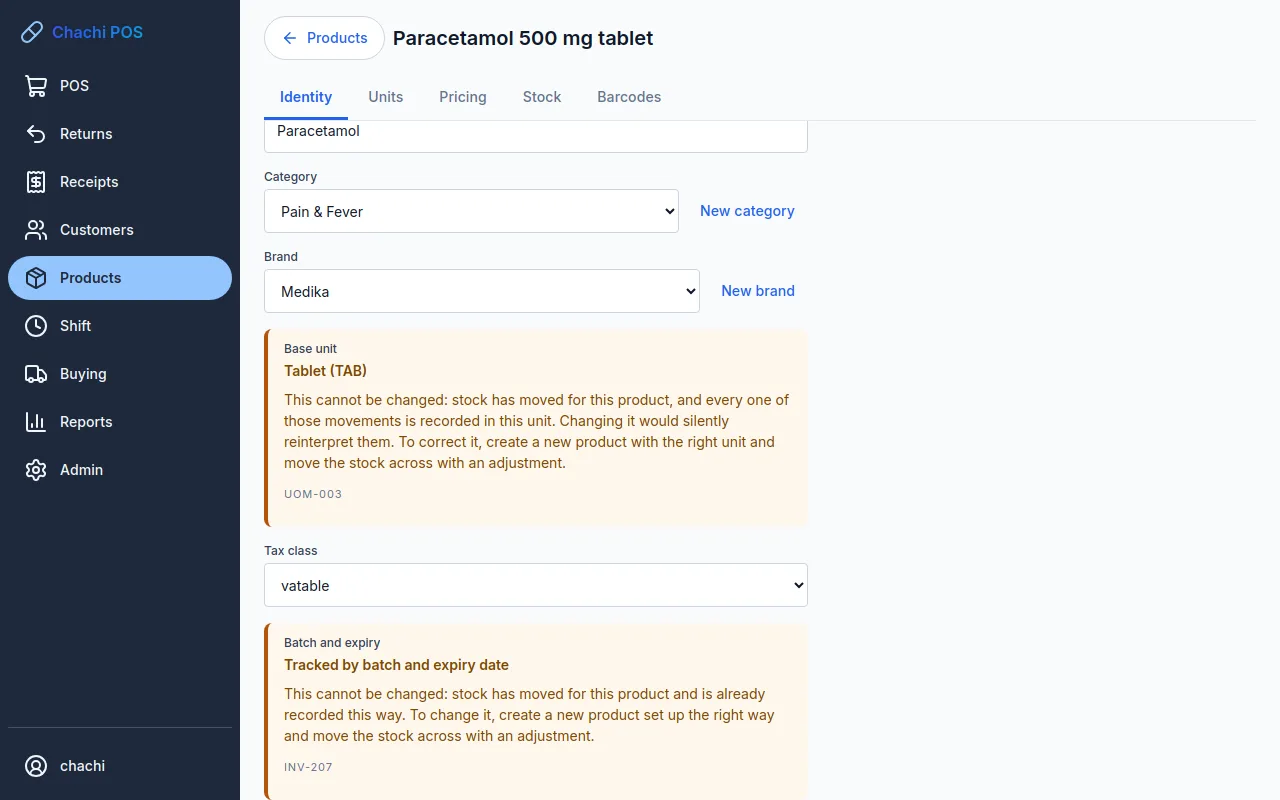
As soon as any stock moves for the product (opening stock, a delivery, a sale), the base unit is locked. The Identity tab shows it as text with the reason: “This cannot be changed: stock has moved for this product, and every one of those movements is recorded in this unit.” If you could change TAB to BOX, the 500 already recorded would suddenly mean 500 boxes.
Add a pack
Who: Owner, Manager or Inventory
- Open the product and click Units. The tab says which unit everything is stored in.
- In Choose a unit…, pick the pack unit, for example BOX. If it is not there, click New unit and make it.
- In the box that says “How many base units”, type how many base units one pack holds: 100.
- Click Add pack. The table shows the pack as a sentence: 1 BOX = 100 TAB. Read it to check the size.
Add each pack against the base unit directly. A box of 10 blisters of 10 tablets is BOX = 100 TAB, not BOX = 10 BLISTER. There is no pack inside a pack. A product can have as many packs as you like, but only one of each unit, and a pack cannot be in the base unit itself.
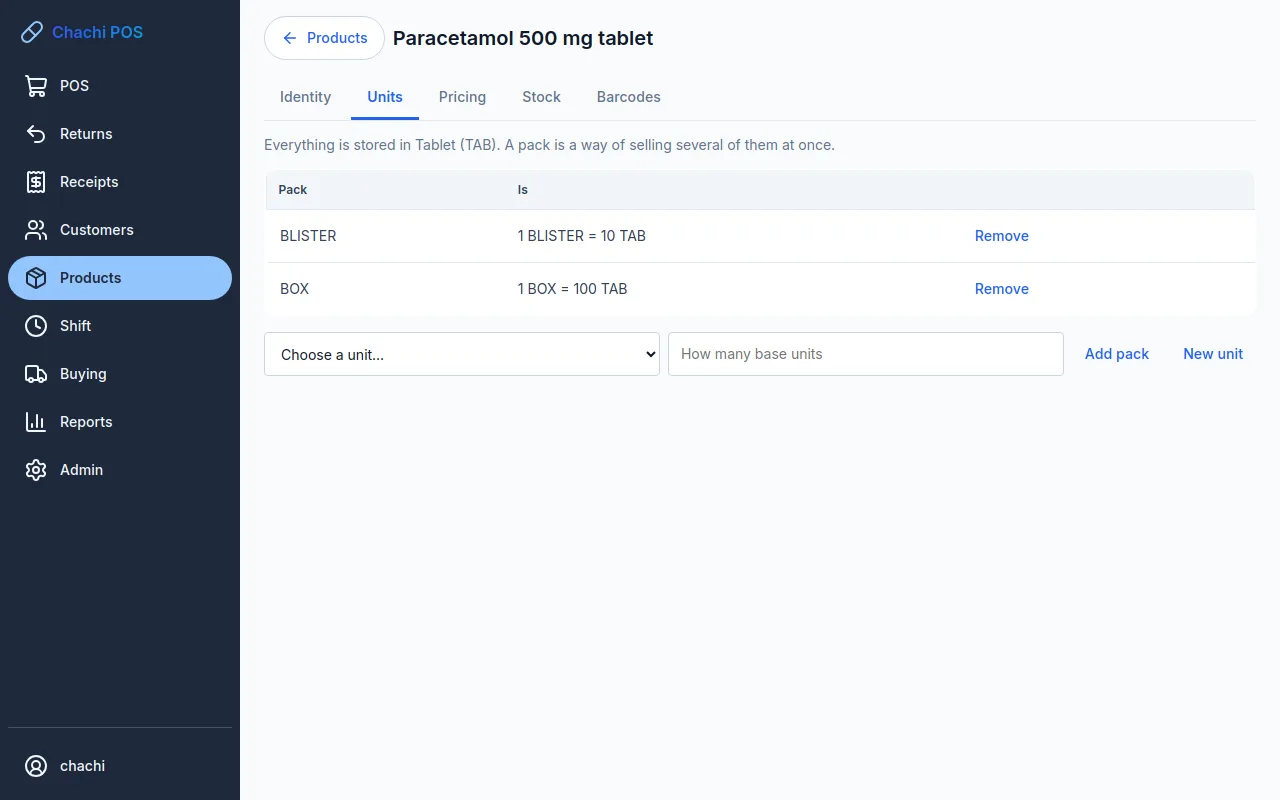
To remove a pack, click Remove beside it. To change a pack's size, remove it and add it again with the right number. Sales already made keep the size they were sold at.
In the opening workbook, packs go on the Packs tab, one row each: sku PAR-500, unit BOX, contains 100 (see Load your products from the opening workbook).
Prices for packs
A pack has no price of its own. Every price is per base unit, and a pack costs its size times that price: a box of 100 tablets at ₱3.50 is ₱350.00. If you change the tablet price, the box price changes with it.
To sell a box cheaper than 100 loose tablets, add a quantity break on the Pricing tab that starts at 100 TAB (see Set prices and quantity breaks). The break is based on the number of tablets on the line, so a box of 100 and 100 loose tablets get the same price.
Important: type the price of one base unit, never the price of the box. A retail price of ₱350 on a tablet product makes each tablet ₱350 and a box ₱35,000.
Sell by the pack or loose
Who: Cashier, Manager or Owner
A product picked from the search, or scanned by the code on the loose item, goes into the sale as 1 base unit. A code printed on a box, and set up as the box's, adds a whole box (see Scan the box's barcode). To change what a line is:
- Scan the product, or search for it and pick it. The line shows 1 TAB.
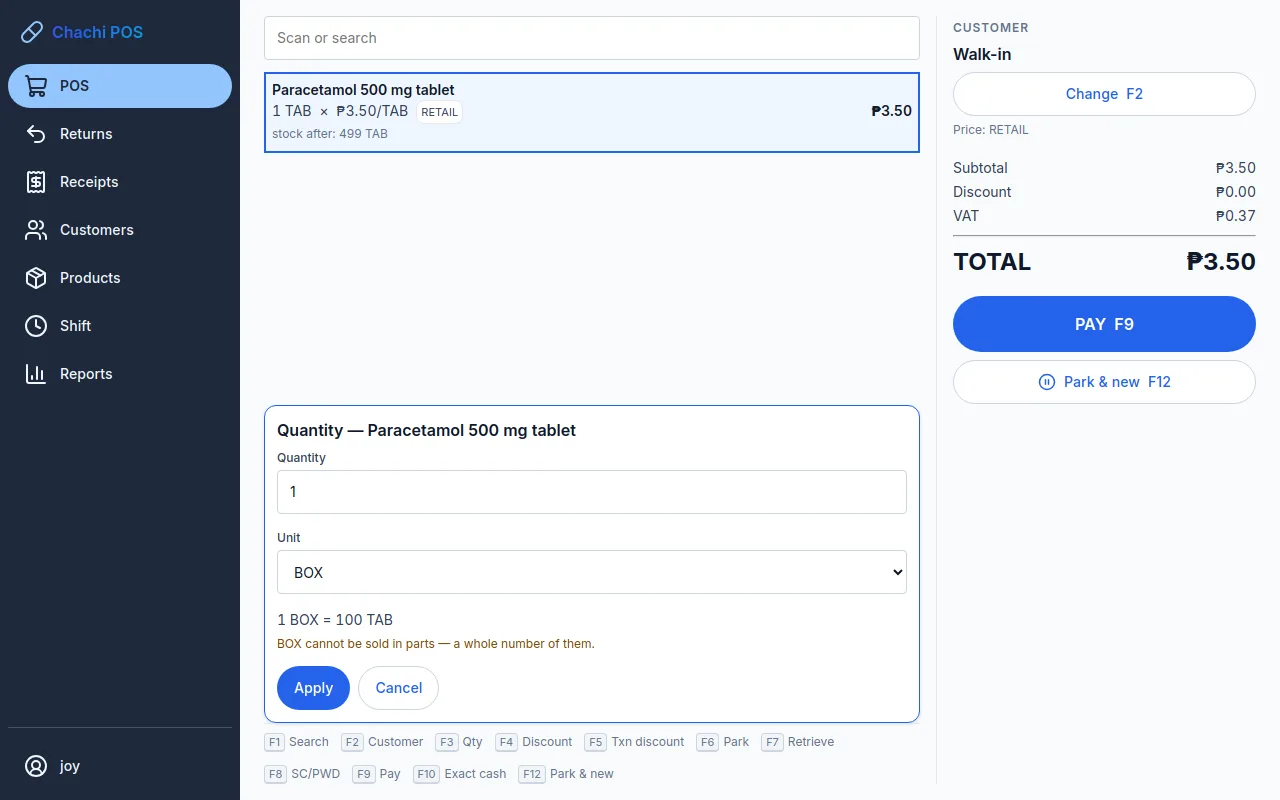
- With that line selected, press F3 or tap Qty (see Change the quantity). The quantity box opens with the product's name.
- Type the number in Quantity, for example 1.
- Choose the pack in Unit, for example BOX. Under the box you see what it comes to: “1 BOX = 100 TAB”.
- Click Apply. The line now reads 1 BOX (100 TAB), with the price per tablet and the line total.
To sell a box and some loose tablets together, add the product a second time (scan or search again). It comes in as a new line in TAB, next to the box line. Press F3 or tap Qty on it and type 15. Scanning the same product again adds to the loose line; it does not change the box line.
Under each line the counter shows stock after in base units, for example “stock after: 385 TAB”. When the sale is paid, the stock falls by the base units: 100 TAB for the box and 15 TAB for the loose tablets. For a product tracked by batch, the tablets come from the batch that expires first (see Batches and expiry). The receipt prints each line's price per base unit and the line total.
Fractions
If the unit you choose cannot be split, a note under the field says so, for example “BOX cannot be sold in parts — a whole number of them.”, and a fraction is refused. A unit that can be split, such as KG or ML, takes decimals: 2.5 KG of feed loose is fine, but half a SACK is not.
Scan the box's barcode
Who: setting up: Owner, Manager or Inventory · scanning: anyone at the counter
A box usually carries its own barcode, different from the one on each strip or bottle. Tell Chachi POS which pack that code is on, and scanning the box adds one box, priced and counted as the box.
- Add the pack first, on the product's Units tab (see Add a pack).
- On the Barcodes tab, scan the code on the box and choose Printed on: 1 BOX = 100 TAB. Click Add.
- At the counter, scan the box. The line reads 1 BOX (100 TAB), and scanning a second box makes it 2 BOX.
A pack with a barcode on it cannot be removed; remove the barcode first. When the opening spreadsheet is filled in, the box's code goes in the barcode column of the Packs tab.
Receive a delivery of packs
Who: Owner, Manager or Inventory
Purchase orders and deliveries are entered in the base unit. The quantity columns show the unit code beside each box, and Unit cost is the cost of one base unit. The full steps are in Receive a delivery, and how the average cost moves is in Costs and the average cost.
| The supplier's invoice says | You enter |
|---|---|
| 5 boxes of 100 tablets at ₱190 a box | Arrived 500, unit cost 1.90 (₱190 ÷ 100) |
| 24 bottles at ₱43 each (base unit BTL) | Arrived 24, unit cost 43.00 |
| 20 sacks of 50 kg at ₱1,500 a sack (Agrivet, base unit KG) | Arrived 1000, unit cost 30.00 |
The average cost the owner sees on the Pricing tab is also per base unit. If a box price does not divide evenly (₱100 for 30 tablets is ₱3.333…), type the cost rounded to the centavo; the delivery's value may then differ from the invoice by a few centavos.
A delivery that includes a product tracked by batch also needs its batch number and expiry date; read Batch-tracked products on a delivery before you receive one.
Open a box to sell loose
You do not need to do anything in the app. The stock is already counted in tablets, so a sealed box and an opened box are the same 100 TAB to the system. Open the box on the shelf and sell the tablets loose; each sale takes only the tablets sold.
What the app cannot tell you is how many boxes are still sealed. If you need that, count them on the shelf.
Counts, adjustments and stock on hand
Everything that shows or changes a stock figure uses the base unit:
| Where | What you see or type |
|---|---|
| Product list, On hand | 385 TAB |
| Product's Stock tab | On hand 385 TAB, and Minimum stock (TAB) |
| Stock count sheet, Counted | Type 385 for 3 sealed boxes and 85 loose tablets |
| Adjust stock, Counted quantity (TAB) | Type the total tablets on the shelf |
| Batches screen, Held | Tablets in each batch |
Tip: when you count a shelf, multiply first: 3 sealed boxes × 100 = 300, plus 85 loose = 385. The count sheet has no box column. See Count the stock.
Fix a unit or pack mistake
Who: Owner, Manager or Inventory (prices: Owner or Manager)
| Mistake | How to fix it |
|---|---|
| Wrong base unit, and no stock has moved yet | Choose the right unit on the Identity tab and click Save. |
| Wrong base unit, and stock has moved | The unit is locked. Create a new product with the right unit, move the stock across with an adjustment on each product (see below), then deactivate the old product. |
| Wrong pack size | On the Units tab, Remove the pack and add it again with the right size. If a barcode is on the pack, remove it on the Barcodes tab first and add it back to the new pack afterwards. Sales already made took the old size; if that made the stock wrong, correct it with a count. |
| Price typed for the box instead of the tablet | On the Pricing tab, type the price of one base unit and click Save prices. Sales already made keep their price. |
| A unit made without fractions that needs them | A unit cannot be edited. Make a new unit with another code and use it for new products or packs. |
| Sold 1 TAB when the customer took a box | Before payment, press F3 and change the unit. After payment, see Returns, voids and reprints. |
To move stock to a new product: on the old product, adjust the counted quantity to 0 with the reason Data entry correction; on the new product, adjust it up to the real quantity with the same reason (see Adjust stock).
Important: for a batch-tracked product, the old product's batches can be adjusted to 0 one at a time, but the new product has no batches until stock of it arrives. Record the stock on the new product as a delivery without an order, with each batch's number and expiry (see Receive a delivery without an order). Better still, check the base unit and the pack sizes before a batch-tracked product's first stock arrives.