
Stock, expiry and counts
See what is on the shelf and what needs reordering, correct the stock figure, count the shelves, keep track of batches and expiry dates, and find who bought a recalled batch.
See stock on hand and low stock
Who: Owner, Manager, Inventory or Cashier
Stock is always shown in the product's base unit, such as tablets (see Units and packs).
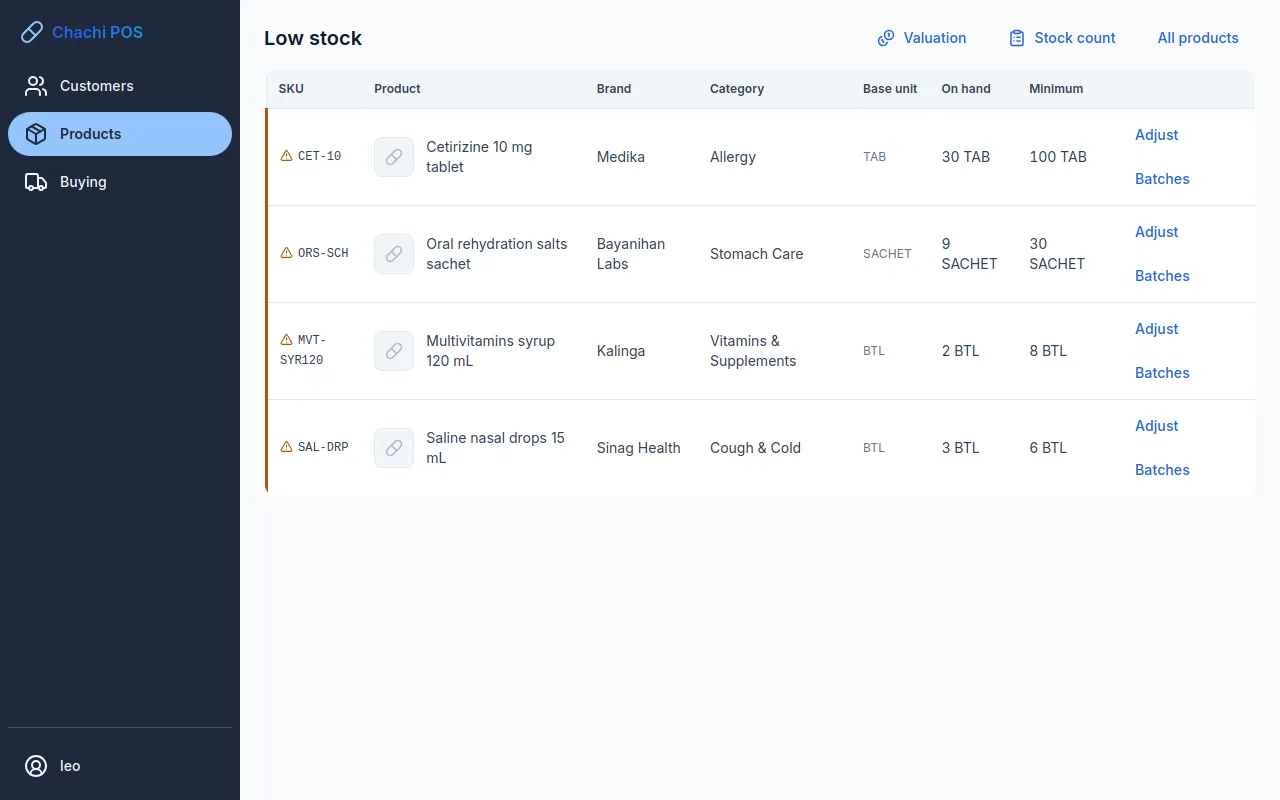
- Click Products. The On hand column shows each product's stock. A product at or below its minimum carries a low tag.
- Click Low stock to list only those products, with their Minimum beside the stock on hand. If nothing needs reordering you see “Nothing is at or below its reorder point.”
- Click All products to go back to the full list.
A product shows as low stock when its stock on hand is at or below the Minimum stock on its Stock tab. Set it there and click Save; zero turns the warning off. The dashboard also lists low stock and expiry warnings (see The dashboard). The Valuation button on Products opens the stock valuation report.
To reorder, raise a purchase order under Buying (see Create a purchase order).
Adjust stock
Who: Owner, Manager or Inventory
Use an adjustment when the stock figure for one product is wrong: a thermometer was dropped, a box was used in the store, or a delivery was never recorded. You type what is really on the shelf, and the app records the difference with a reason. A product tracked by batch is adjusted one batch at a time.
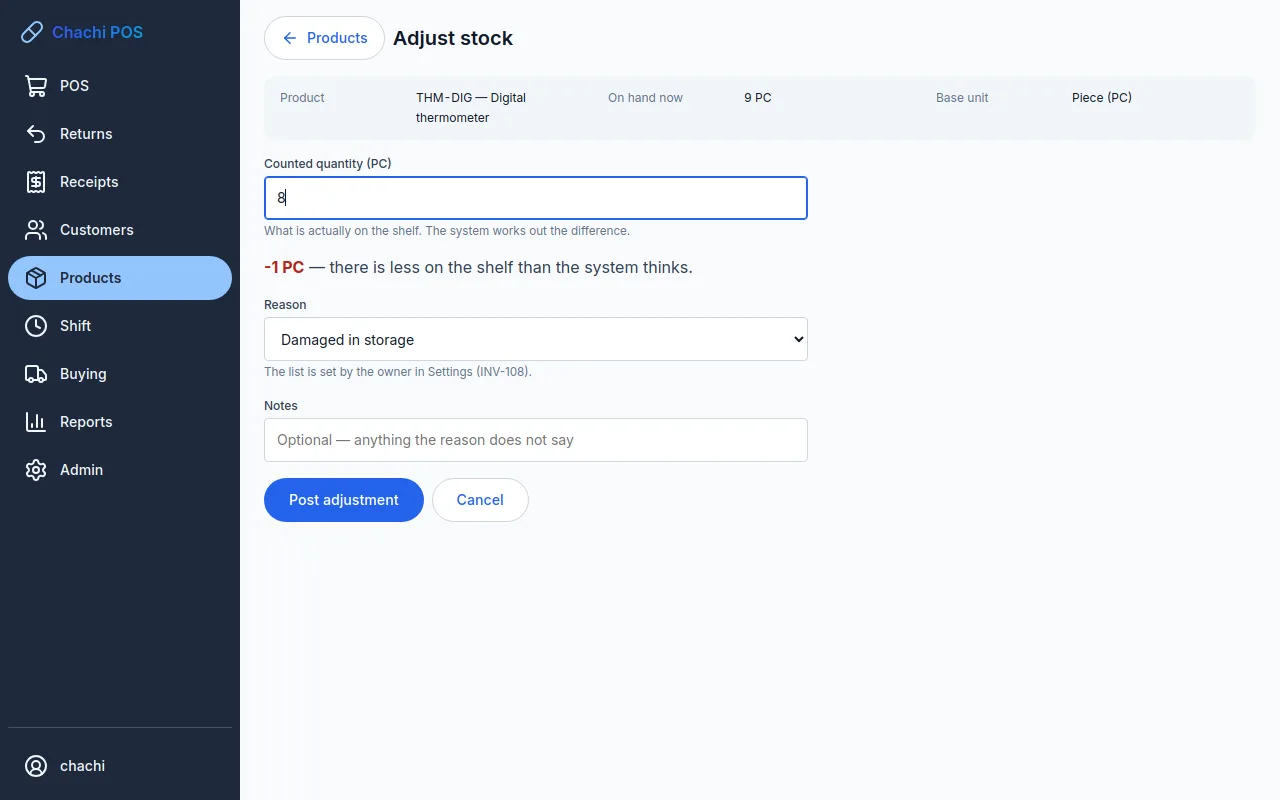
- On Products, click Adjust on the product's row. The Adjust stock screen shows the product, On hand now and the base unit.
- For a batch-tracked product, choose the Batch you counted. The list shows each batch's number, expiry date and what it holds, and the counted box starts at that figure.
- Count the product (or that batch) on the shelf and type the total in Counted quantity (Counted in this batch for a batch-tracked product). Type what is there, not the difference.
- Read the line under it, for example “−1 PC — there is less on the shelf than the system thinks.” If it says “The count matches. Nothing to post.”, there is nothing to do.
- Choose a Reason. You can only pick from the list.
- Add Notes if the reason does not say enough.
- Click Post adjustment. You see “Adjustment posted” and return to Products.
The reasons that come with the app are: Damaged in storage, Spoilage, Physical count correction, Received but not recorded, Internal use, Supplier shortage on delivery, and Data entry correction. The owner can change the list in Admin → Settings, under Reasons an inventory adjustment may be filed under (see All the other settings).
If an owner has to approve
An adjustment worth more than ₱5,000 at average cost needs the owner (the owner can change this limit in Admin → Settings, under Adjustment value above which owner authorisation is required). When you click Post adjustment, a panel opens instead. The owner types their username in Approver and their Password, and clicks Approve. Then click Post adjustment again. Both names are recorded. An owner who posts the adjustment themselves does not need a second person.
Batch-tracked products
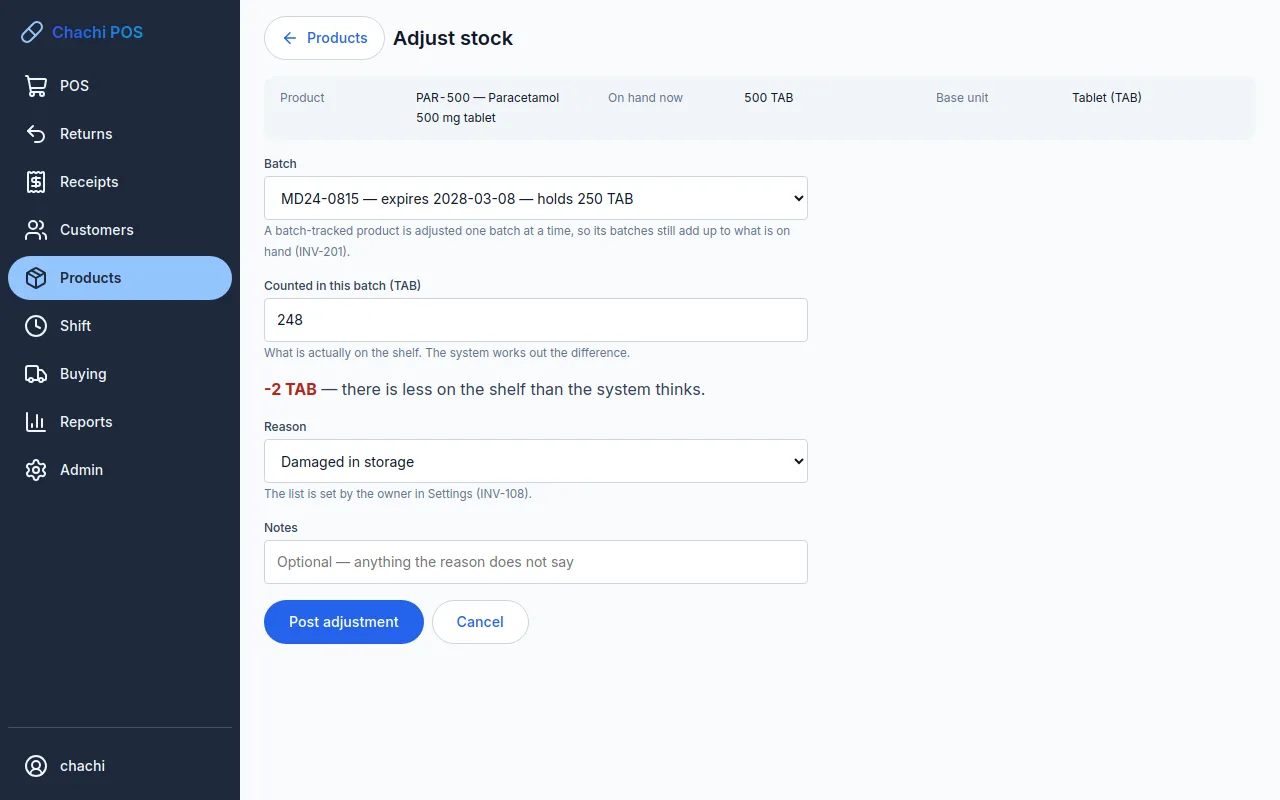
The adjustment changes only the batch you chose, so the product's batches still add up to what is on hand. It cannot take a batch below zero: if you count fewer than none, the count is wrong, and the app says how many the batch holds. A batch appears in the list once its stock has arrived on a delivery. Stock of a batch that never arrived is received as a delivery (Batch-tracked products on a delivery), not adjusted in. To write off a batch that has expired, use its Batches screen.
Count the stock
Who: Owner, Manager or Inventory counts and posts. A Manager or Owner who did not open the count approves it.
A stock count checks a whole category, or the whole store, against the shelves. When you open it, the app freezes what it expects on every shelf. The store can keep selling while you count: the difference is measured against the frozen figure, so sales made during the count stay sold.
Start the count
- On Products, click Stock count. The Stock counts screen lists earlier counts.
- In What to count, choose Every product or one category. One category at a time is the usual count.
- Add a Note if you like, and click Open a count. You see how many products were frozen, and the count sheet opens.
Count
- Find a product with Find a product, or walk the sheet from the top.
- Type what you count in the Counted box, in the base unit. It is saved when you leave the box, so you can stop and come back later.
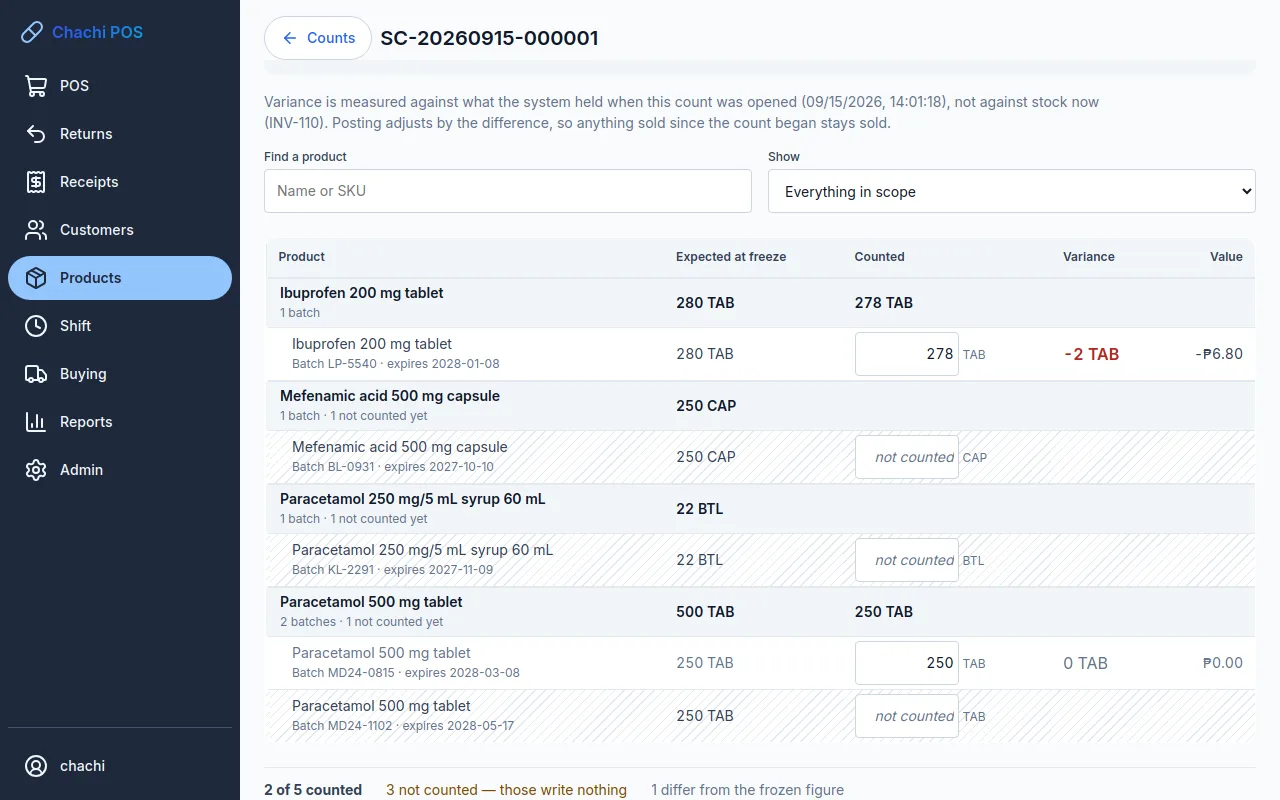
- A product tracked by batch has one line per batch, labelled “Batch MD24-0815 · expires …”, under a heading that shows the product's total. Count each batch's boxes separately.
- Type 0 for a shelf that is empty. Leave the box blank for a shelf you did not reach.
Important: a blank is not a zero. A blank line writes nothing. A 0 writes off everything the system expected on that line.
Review the differences
At the bottom the sheet shows how many lines are counted, how many are not (“those write nothing”) and how many differ from the frozen figure. In Show, choose Not counted yet to find the lines you missed, or Different from expected to recheck the differences. The Variance column shows each difference.
Approve and post
- A Manager or Owner who did not open the count signs in, opens it from the Stock counts list and clicks Approve this count.
- Click Post the count. The app writes one movement for each line that differs, and nothing for lines that matched or were not counted.
- The result says how many products were adjusted and what the difference was worth. Click Back to counts.
If the store has only one active user, that person's count is approved without a second person, and the record says so. A count opened more than 7 days ago needs the owner to approve posting it, in a panel that opens when you click Post the count.
Tip: plan who counts and who approves. The person who opened the count cannot approve it while another user is active. If the owner opens the count and the only other accounts are cashiers, nobody can approve it, so have a manager or inventory clerk open it instead.
To stop a count without posting it, click Abandon, say why, and click Abandon count. A posted count cannot be changed; correct it with an adjustment, or with another count for a batch-tracked product.
Batches and expiry
Who: Owner, Manager, Inventory or Cashier
A product tracked by batch keeps its stock as batches: each with the supplier's batch number, the supplier and the expiry date printed on the box. Batches are created when that stock arrives, with its batch number, expiry date and supplier: from the opening workbook, or on a delivery (see Batch-tracked products on a delivery). You cannot type a batch in on the Batches screen or on a count sheet.
- On Products, click Batches on the product's row. The button is only on products tracked by batch.
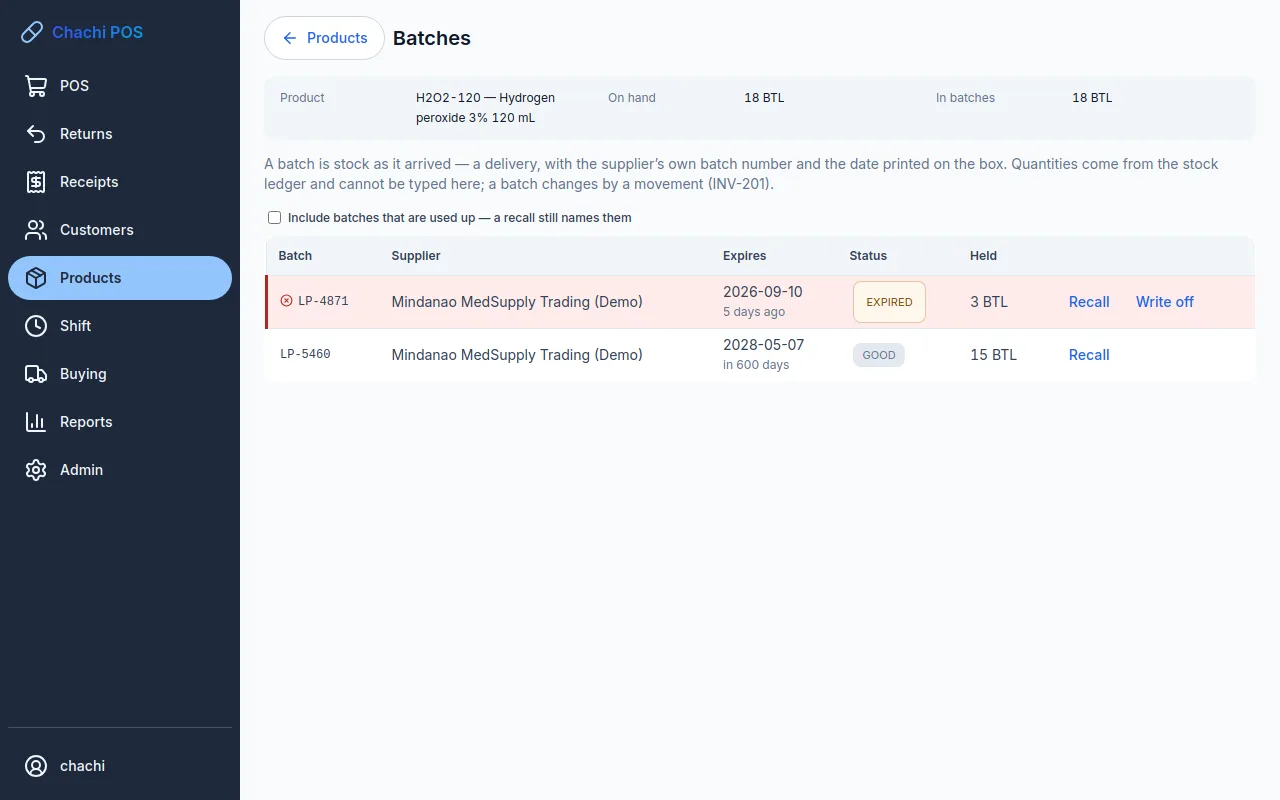
- The screen shows On hand and In batches (always the same total), then one row per batch: Batch, Supplier, Expires (with “in 12 days” or “5 days ago”), Status and Held.
- To see batches that are sold out, tick Include batches that are used up — a recall still names them.
The status is Good, Near expiry or Expired. A batch is near expiry within 90 days of its date; the owner can change the number of days in Admin → Settings, under Days before expiry at which a batch reads NEAR_EXPIRY. A batch can still be sold on the date printed on it and is expired the day after. The status changes by itself at midnight. The dashboard's expiry warnings have a See the batches or Write it off button that opens this screen.
First to expire is sold first
The cashier never picks a batch. Each sale takes stock from the batch that expires first, and moves on to the next batch if one is not enough. Expired batches are never sold, and there is no way to override that.
If the only stock left is expired, the sale is refused when it is completed, with a message such as “Hydrogen peroxide 3% 120 mL: 1 BTL short. 3 BTL is on the shelf but expired (LP-4871 on …) and may not be sold.” Take the expired boxes off the shelf and write them off.
Write off expired or damaged stock
Who: Owner, Manager or Inventory
Expired stock
- Open the product's Batches screen (from Products, or from the dashboard's Write it off button).
- On the expired batch, click Write off.
- The box “Write off batch LP-4871” says how much will go. Add a Note (optional) if you like.
- Click Write it off. You see, for example, “LP-4871 written off — 3 BTL gone from stock”.
The stock is recorded as expired, not deleted, so the Movement analysis report shows what left the shelf through expiry (see Stock value and movements). The Write off button appears only on expired batches that still hold stock. A cashier sees the batches but not the button.
Damaged stock
Post an adjustment with the reason Damaged in storage. For a batch-tracked product, choose the batch that was damaged. Damaged goods a customer brings back are handled as a return (see Return goods).
Recall a batch
Who: anyone can read the recall list. Putting a batch on recall, returning it and lifting a recall: Owner, Manager or Inventory. Saving the list as a file: Owner or Manager.
When a manufacturer or the FDA recalls a batch, do two things at once: stop it being sold, and find the customers who bought it. Both start on the same screen.
- On Products, click Batches on the product. If the batch is sold out, tick Include batches that are used up — a recall still names them.
- Click Recall on the batch named in the notice.
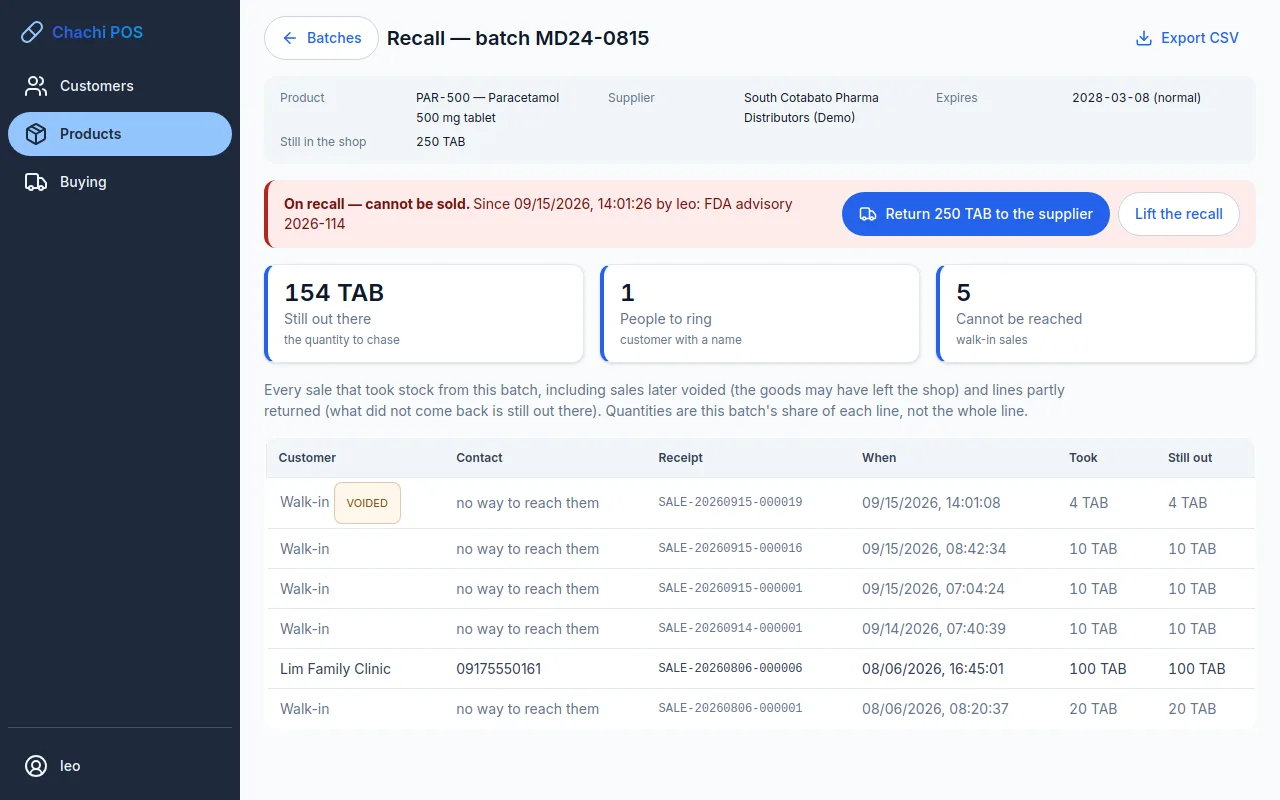
- The screen Recall — batch … shows the product, supplier, expiry, and how much is Still in the shop. Under it, a line says Not on recall.
- Click Put on recall. In Why, type the notice, for example “FDA advisory 2026-114”, and click Put on recall.
- The line turns red: On recall — cannot be sold, with the date, who did it and why. From now on the counter will not sell this batch.
- Take the boxes of that batch off the shelf and keep them apart.
What the counter does with a recalled batch
The counter sells the product from its other batches, as if the recalled one were not there. If there is not enough in the other batches, the sale does not complete and the cashier sees, for example, Paracetamol 500 mg tablet: 1 TAB short. 250 TAB is on the shelf but recalled (batch MD24-0815) and may not be sold. Take it off the shelf. On Batches the batch shows a red Recalled tag, and the dashboard warns while any recalled batch still holds stock.
Ring the customers
- Read the three figures: Still out there (the quantity with customers), People to ring (customers with a name) and Cannot be reached (walk-in sales).
- Work down the list: Customer, Contact, Receipt, When, Took and Still out. Walk-in sales say “no way to reach them”. Voided sales and part-returned lines stay on the list, marked, because the goods may still be with the customer.
- Click Export CSV to save the list as a file you can print or work through by phone.
When a customer brings recalled goods back, take them as an ordinary return (Return goods). They go back into the recalled batch, so they cannot be sold again. Send them back to the supplier with the rest.
Send it back to the supplier
- When the supplier collects the stock, or you send it, open the batch's Recall screen.
- Click Return … to the supplier. The button shows how much the batch holds.
- Add a Note if it helps, for example the supplier's return slip number, and click Return to supplier.
All that the batch holds leaves stock as Returned to supplier, which the Movement analysis report shows. The batch stays on recall.
Lift a recall placed by mistake
If the wrong batch was put on recall, or the manufacturer withdraws the notice, click Lift the recall, say why, and confirm. The batch can be sold again at once. The audit trail keeps both the recall and the lift, with who did each and why.
How the stock figure is kept
Nobody types the stock figure. Every change is recorded as a movement with its type and reason: opening stock, goods received, sold, sale voided, customer return, adjustment, expired, stock count difference. Stock on hand is the total of those movements, and a batch's quantity is the same total for that batch. A movement is never edited or deleted; a mistake is corrected by a new movement beside it, so the record shows what really happened, mistakes included. You can read them in the Movement analysis report (see Stock value and movements).
Agrivet store: new products start without batch tracking, so most feed and supplies have no batches: the Adjust screen asks for no batch and the Batches button does not appear. Vaccines and medicines ticked for batch tracking work exactly as described here.