
Reports
Read the dashboard every morning, check the day's sales and payments, compare GCash and QR Ph with the wallet's statement, see what sells and what does not, and save any report as a spreadsheet file.
Who can see which report
Owners and managers land on the dashboard when they sign in. Everyone else opens it with Reports in the menu, if their role has it.
| Report | Owner | Manager | Cashier | Inventory |
|---|---|---|---|---|
| Dashboard | Yes | Yes | Own shift only | No |
| Daily sales, Payments, Sales analysis | Yes | Yes | No | No |
| Reconciliation, Ageing | Yes | Yes | No | No |
| Inventory valuation, Movement analysis | Yes | Yes | Yes (view) | Yes, from Products → Valuation |
| Export CSV | Yes | Yes | No | No |
A cashier's dashboard shows the words Your shift only, and its sales figures are for their own shift today. If they have no shift today, it says You have no shift on this day, so there are no figures to show you. Opening a store-wide report as a cashier is refused with You can only see the sales report for your own shift. Ask the owner or a manager for the store's figures.
A screen unlocked with a PIN cannot open reports. Sign in with your password instead.
Read the dashboard
Who: Owner or Manager (Cashier: own shift)
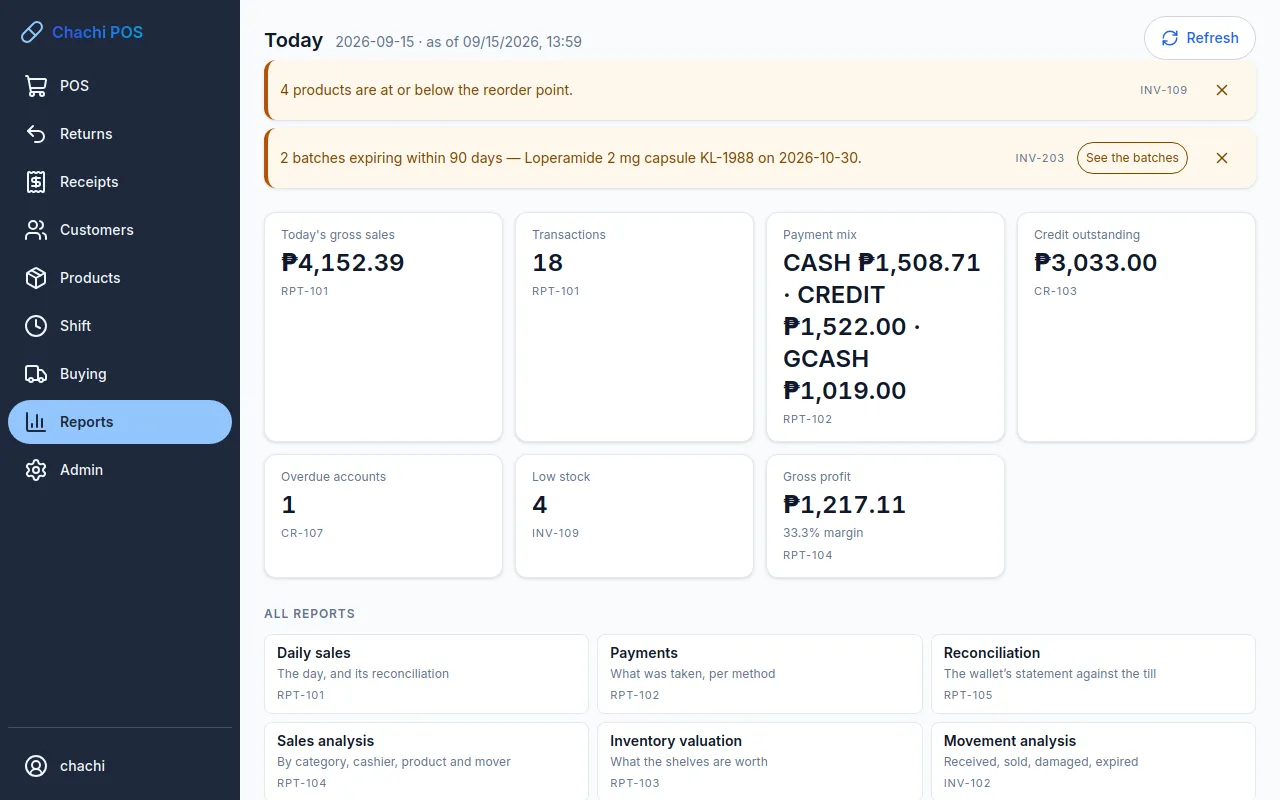
Click Reports. The dashboard is headed Today, with the date and the time the figures were taken. Click Refresh to update them. It has four parts, from top to bottom.
1. The subscription line
Shown only when the subscription is ending soon, in its grace period, lapsed or not linked. See Subscription warnings.
2. Alerts
Things that need someone to act, the most serious first: expired or nearly expired batches, low stock, overdue accounts, customers at their credit limit, a shift left open too long, a cash drawer that closed short or over, a backup that is overdue or failed, and a computer clock that is wrong.
- An expiry alert has a button (See the batches or Write it off) that opens that product's batches.
- Click the × to hide an alert until you leave the dashboard. Backup and clock alerts cannot be hidden.
3. The seven tiles
Click a tile to open the report behind it.
| Tile | What it means | Opens |
|---|---|---|
| Today's gross sales | Everything rung up today before discounts and returns. Voided sales are left out. | Daily sales |
| Transactions | How many sales were completed today. | Daily sales |
| Payment mix | Today's takings per payment method, after change, for example CASH ₱8,420.00 · GCASH ₱2,150.00. | Payments |
| Credit outstanding | What customers owe the store in total (utang). Store credit you hold for customers is not subtracted. | Ageing |
| Overdue accounts | How many customers have a balance past its due date. | Ageing |
| Low stock | How many products are at or below their reorder point. | The low-stock list of products |
| Gross profit | Today's sales (without VAT) less what the goods cost, with the margin as a percentage. | Daily sales |
The small code on each tile (such as RPT-101) names the rule behind the figure. Quote it if you ask for help.
4. All reports
Below the tiles, All reports lists every report: Daily sales, Payments, Reconciliation, Sales analysis, Inventory valuation, Movement analysis and Ageing. Click one to open it. Each report has a Dashboard button at the top left to come back.
Choose the dates and export to CSV
Who: Owner or Manager
Reports open on today. To see another day or a longer period:
- Pick the first day in From and the last day in To. For one day, pick the same date in both.
- Click Show.
Days run from midnight to midnight, Philippine time. One report can cover up to 366 days; a longer range is refused with A report covers at most 366 days at a time. Inventory valuation and Ageing have no dates: they show the position right now.
The sales reports start with a header block: the Range, the Scope (the whole store), the Tax mode, how many Voided sales were left out and their value, and who Generated it and when.
Save a report as a CSV file
- Open the report and set the dates.
- Click Export CSV. A message such as daily-2026-09-15.csv saved appears. On Windows the file goes where your computer saves downloads (it may ask you where); on Android it goes to the tablet's Downloads folder.
- Open the file with Excel, Google Sheets or LibreOffice.
Export CSV is on Daily sales, Payments, Inventory valuation, each tab of Sales analysis, Movement analysis and Ageing. The file has the same figures as the screen, amounts in pesos with two decimals, and the header block at the top. The daily sales file also shows senior citizen and PWD discounts on their own line. Every export is recorded in the audit trail.
Daily sales and gross profit
Who: Owner or Manager
Open it from the Today's gross sales tile or All reports → Daily sales.
- The totals: Gross, less Line discounts, Transaction discounts and Returns, gives Net. Then VAT, Tendered, Change given and the number of Transactions.
- Reconciliation: the same sum written out in words, ending This report reconciles. The payments taken, less change, must equal net sales.
- Gross profit: sales without VAT, less the cost of the goods sold, and the margin. The cost is the product's average cost at the moment each item was sold, so a later delivery at a new price does not change past profit.
- Per product: quantity, revenue, cost and gross profit for each product sold.
- Voided — excluded from every figure above: each voided sale, with its receipt number, time, amount and cashier.
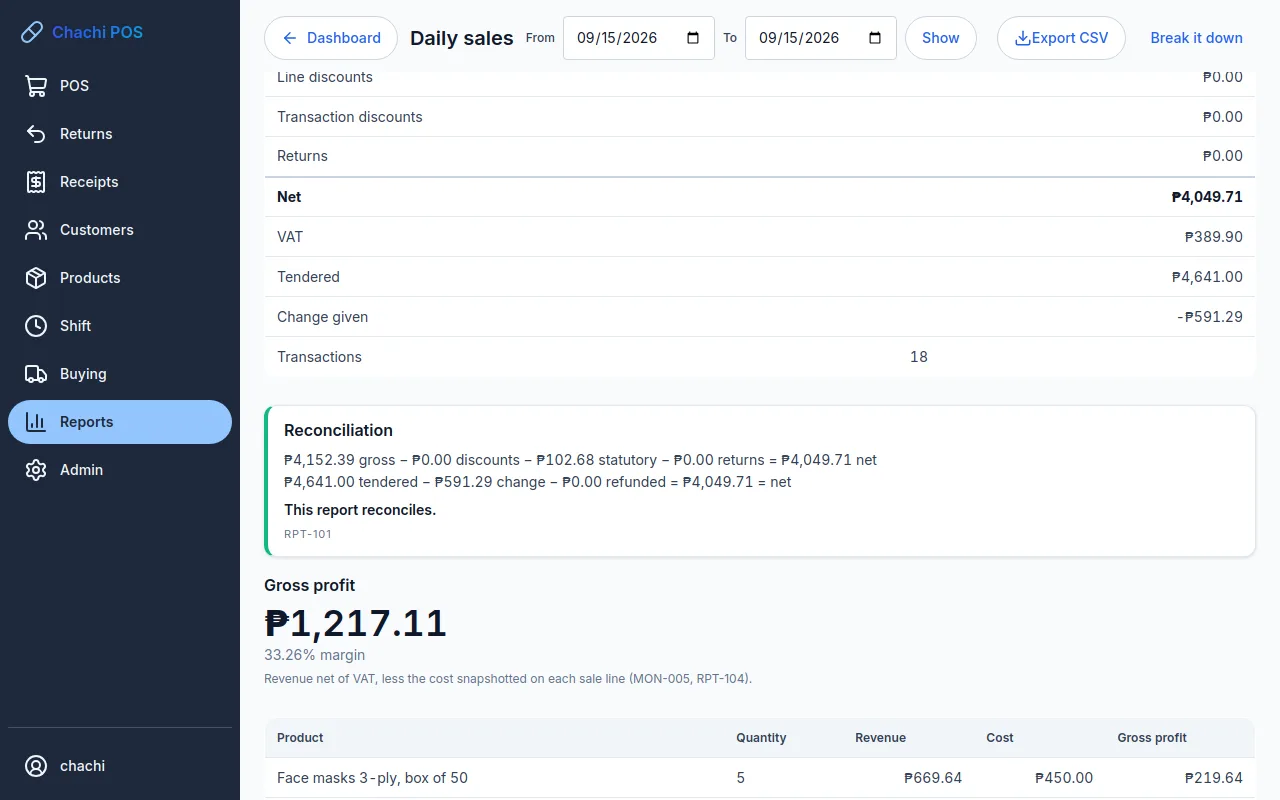
Click Break it down to open Sales analysis for the same dates.
Payments by method
Who: Owner or Manager
Open it from the Payment mix tile or All reports → Payments. One row for each method used in the period (CASH, GCASH, QRPH, CREDIT, STORE_CREDIT) shows the number of Sales and Tenders, the amount Tendered, the Change given, the Net and its Share of the total.
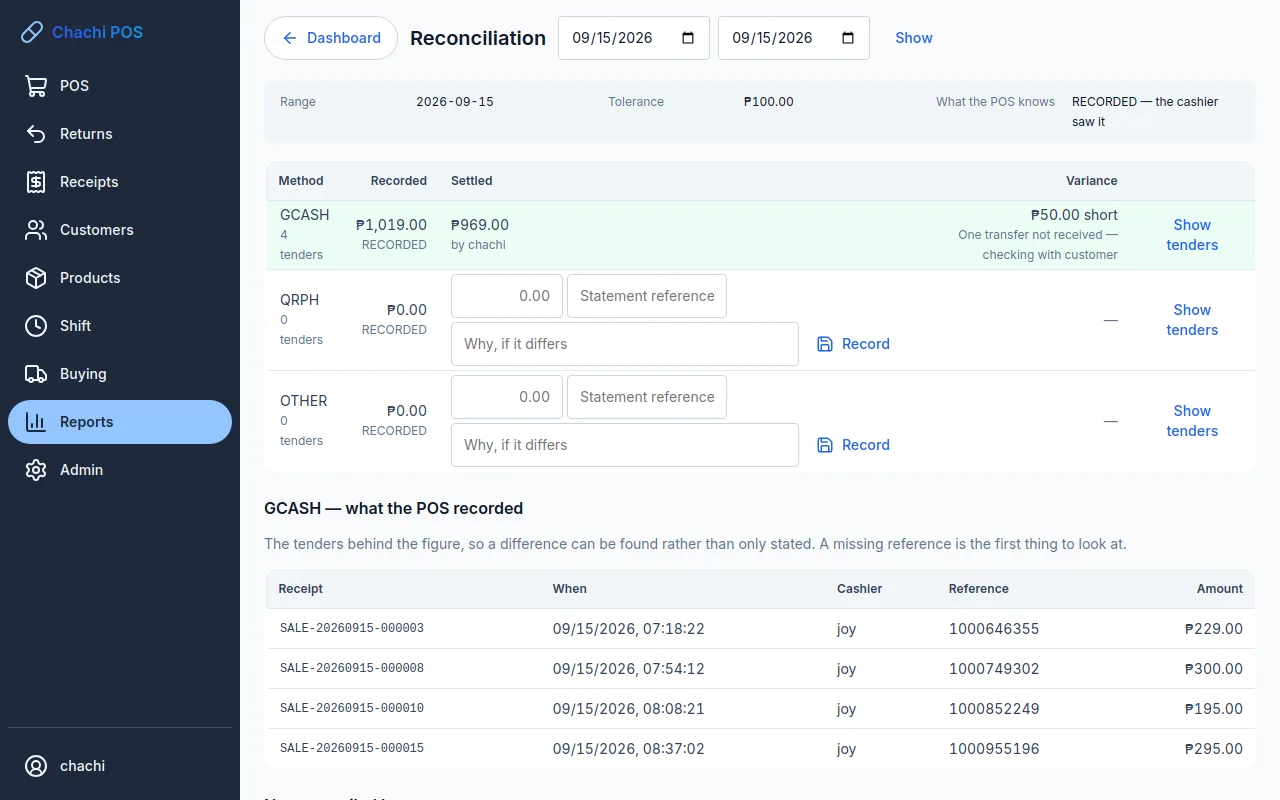
Net is what was tendered less change, and its total equals net sales on the daily report. GCash and QR Ph rows say RECORDED: the cashier saw the payment on the customer's phone, but Chachi POS cannot confirm the money arrived. That is what the reconciliation below is for.
Click Reconcile to open the reconciliation for the same dates.
Check GCash and QR Ph against the wallet
Who: Owner or Manager
Do this daily or weekly, with your GCash app (or the bank or wallet that receives your QR Ph payments) open beside you. Cash is not checked here; it is counted at the shift close.
- Open All reports → Reconciliation (or Payments → Reconcile).
- Set the two dates to the period you are checking and click Show.
- Read the GCASH row: Recorded is what the cashiers recorded, with the number of tenders.
- In the GCash app, add up the payments you received for the same dates (or read the total from your statement).
- Type that total in the amount box on the GCASH row. Type the statement's reference in Statement reference if you have one.
- If the two figures differ, say why in Why, if it differs: a fee, a transfer that arrived the next day, or a sale nobody paid for.
- Click Record. The row now shows Exactly as recorded, or the difference as ₱50.00 short or ₱50.00 over, and who recorded it.
- Do the same on the QRPH row. A row for OTHER is also shown; if it says ₱0.00, leave it.
Find the difference
Click Show tenders on the row. Every payment behind the figure is listed with its Receipt number, time, Cashier, Reference and Amount. Match each reference number with the transactions in the GCash app. Payments marked no reference are the first to check.
Rules to know
- A difference of more than ₱100.00 needs a reason, or it is refused with a message that starts GCASH settled … recorded — a difference of …. The ₱100.00 is the setting Settlement variance that requires a reason (Change a setting).
- Recording never changes any sale or payment. The difference is kept as a record; nothing is "corrected".
- Each method can be reconciled only once for any day. If you try an overlapping period, it is refused and tells you the period already done. Start your next check the day after the last one.
Sales by category, cashier and product
Who: Owner or Manager
Open All reports → Sales analysis, or Break it down on Daily sales. Set the dates and choose a tab.
- By category: each category's products, lines, revenue, cost, gross profit, margin and share of revenue.
- By cashier: each cashier's shifts, transactions, net sales, average sale, discounts given, gross profit, margin and share. Useful for checking discounts and for scheduling staff.
- By product: every product sold with quantity, transactions, revenue, gross profit, margin and stock on hand. Use Sort by to order by Revenue, Quantity, Gross profit, Transactions or Name. Up to 200 rows are shown, and a line tells you how much of the total they cover.
The category and cashier tabs check themselves: they should say This breakdown adds up to the report it came from. The two tabs can differ slightly from each other, because a discount on the whole sale belongs to the cashier's sale but not to any one category.
Top and slow sellers
Who: Owner or Manager
In Sales analysis, open the Movers tab and set the dates (a month or a quarter works best).
- Fast — top 10 by revenue: the products that brought in the most money.
- Fast — top 10 by units: the products that sold the most pieces, ranked separately for each unit (for example In TAB, In BTL), because 40 tablets and 40 bottles are not the same thing.
- Slow: active products that sold nothing in the period, with the stock on hand, the money Tied up in it at average cost, and Last sold: Never sold, a date, or Added during this range — too new to judge.
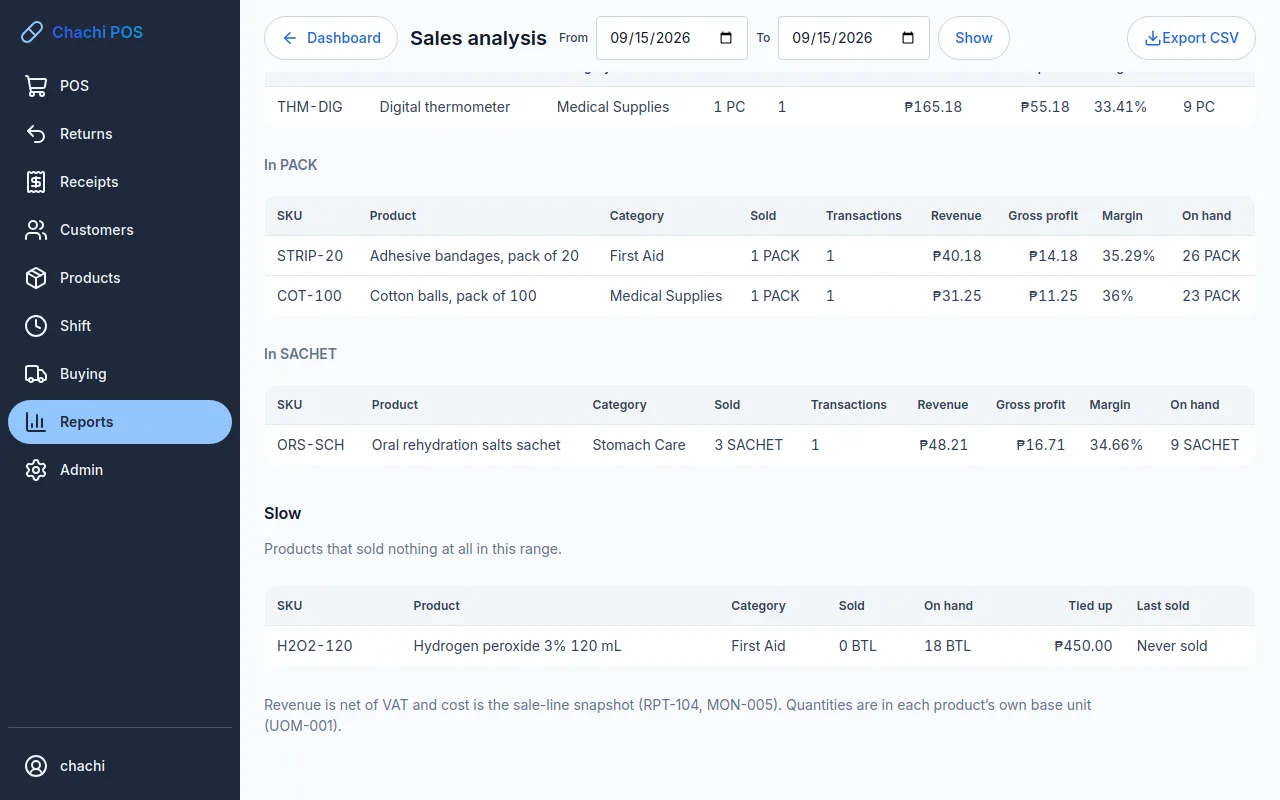
Tip: Check the Slow list against expiry dates. A slow medicine with a near expiry is the one to move to the front of the shelf.
Stock value and stock movements
Who: Owner, Manager, Inventory, or Cashier (view only)
Inventory valuation
Open All reports → Inventory valuation, or Products → Valuation. It shows what your stock is worth right now: the total, then each product's SKU, On hand, Average cost and Value (on hand × average cost).
Movement analysis
Open All reports → Movement analysis, or Movement analysis on the valuation screen. Set the dates and click Show.
- Reconciliation: the stock at the start of the period plus everything that moved equals the stock at the end. It should say This ledger reconciles.
- By type: one row for each kind of movement: Goods received, Sold, Sale voided, Customer return, Adjustment, Damaged, Expired, Internal use, Stock count variance and others, with the number of movements, products and value. Click Only this to list the products behind one type; Show all goes back.
- Costed and Estimated: goods received carry the cost actually paid. Stock that went out (sold, damaged, expired) is valued at today's average cost, so that figure is an estimate. The column Where the value comes from says which.
Who owes the store (ageing)
Who: Owner or Manager
Open it from the Credit outstanding or Overdue accounts tile, or All reports → Ageing. It shows what customers owe as of now:
- At the top: Owed to the store, Accounts with debt, and five totals: Not yet due, 1–30 days, 31–60 days, 61–90 days and Over 90 days past the due date.
- One row per customer, oldest debt first, with their contact number, the amount in each age column, any Credit held and the total Owing. One customer can have amounts in several columns, because each unpaid sale ages on its own.
- Click a customer to open their profile, where you can record a payment or print a statement (Customers and utang).
Tip: Use this list each morning as your list of people to call or visit, starting from the top.
Find voided sales and write-offs
Who: Owner or Manager; the audit trail is Owner only
There is no separate void report or write-off report screen in this version. Find them here instead:
- Voided sales: open Daily sales for the dates you want. The header says how many were left out and their value, and the list at the bottom names each one with its cashier.
- Stock written off (damaged, expired, internal use, adjustments): open Movement analysis and click Only this on the Damaged, Expired or Adjustment row.
- Customer debts written off, and who approved each void: sign in as the owner, open Admin → Audit (Audit trail), choose Debt written off or Sale voided in What, set the dates and click Filter. Each row shows who, when and why.
If a report says it does not reconcile
Daily sales, the Sales analysis tabs and Movement analysis each check their own arithmetic. If one says This report does not reconcile — out by ₱… (or This breakdown does not add up, or The ledger does not reconcile), it is a fault in the program, not rounding.
- Do not act on those figures yet.
- Click Export CSV to keep a copy of the report as it is.
- Email ChachiSoftware@gmail.com with the report name, the dates and the file (see How to get help).